Showing posts with label text-to-pdf. Show all posts

Tuesday, December 6, 2016

[xtopdf] Wildcard text files to PDF with xtopdf and glob

By Vasudev Ram


First joker card image attribution

This is another in my series of applications that use xtopdf (source), my Python toolkit for PDF creation from other formats.

[ Here's a good overview of xtopdf, its uses, supported platforms and formats, etc. ]

I called this app WildcardTextToPDFpy.. It lets you specify a wildcard for text files, and then converts each of the text files matching the wildcard (like grades*2016.txt or monthly*sales.txt) [1], into corresponding PDF files - with the same names but with '.pdf' appended.

[1] For example, the wildcard grades*2016.txt could match grades-math-2016.txt and grades-bio-2016.txt (think a school or college), while monthly*sales.txt might match monthly-car-sales.txt and monthly-bike-sales.txt (think a vehicle dealership), so a PDF file will be generated for each text file matching the given wildcard.

The program uses the iglob function from the glob module in Python's standard library, similar to how this recent other post:

Simple directory lister with multiple wildcard arguments

used the glob function. The difference is that glob returns a list, while iglob returns a generator, so it will return the matching filenames lazily, on demand, as shown here:
$ python
>>> g1 = glob.glob('text*.txt')
>>> g1
['text1.txt', 'text2.txt', 'text3.txt']
>>>>>> g2 = glob.iglob('text*.txt')
>>> g2
<generator object iglob at 0x027C2850>
>>> next(g2)
'text1.txt'
>>> for f in g2:
...     print f
...
text2.txt
text3.txt

Here is the code for WildcardTextToPDF.py:
from __future__ import print_function

# WildcardTextToPDF.py
# Convert the text files specified by a filename wildcard,
# like '*.txt' or 'foo*bar*baz.txt', to PDF files.
# Each text file's content goes to a separate PDF file, with the 
# PDF file name being the full text file name (including the 
# '.txt' part), with '.pdf' appended.
# Requires:
# - xtopdf: https://bitbucket.org/vasudevram/xtopdf
# - ReportLab: https://www.reportlab.com/ftp/reportlab-1.21.1.tar.gz
# Author: Vasudev Ram
# Copyright 2016 Vasudev Ram
# Product store: https://gumroad.com/vasudevram
# Web site: https://vasudevram.github.io
# Blog: http://jugad2.blogspot.com

import sys
import os
import glob
from PDFWriter import PDFWriter

def usage(argv):
    sys.stderr.write("Usage: python {} txt_filename_pattern\n".format(argv[0]))
    sys.stderr.write("E.g. python {} foo*.txt\n".format(argv[0]))

def text_to_pdf(txt_filename):
    pw = PDFWriter(txt_filename + '.pdf')
    pw.setFont('Courier', 12)
    pw.setHeader('{} converted to PDF'.format(txt_filename))
    pw.setFooter('PDF conversion by xtopdf: https://google.com/search?q=xtopdf')

    with open(txt_filename) as txt_fil:
        for line in txt_fil:
            pw.writeLine(line.strip('\n'))
        pw.savePage()

def main():
    if len(sys.argv) != 2:
        usage(sys.argv)
        sys.exit(0)

    try:
        for filename in glob.glob(sys.argv[1]):
            print("Converting {} to {}".format(filename, filename + '.pdf'))
            text_to_pdf(filename)
    except Exception as e:
        print("Caught Exception: type: {}, message: {}".format(\
            e.__class__, str(e)))

if __name__ == '__main__':
    main()
And here are the relevant files before and after running the program, with the program's output in between:
$ dir text*.txt/b
text1.txt
text2.txt
text3.txt

$ python WildcardTextToPDF2.py text*.txt
Converting text1.txt to text1.txt.pdf
Converting text2.txt to text2.txt.pdf
Converting text3.txt to text3.txt.pdf

$ dir text?.txt*/od/b
text1.txt
text2.txt
text3.txt
text1.txt.pdf
text2.txt.pdf
text3.txt.pdf
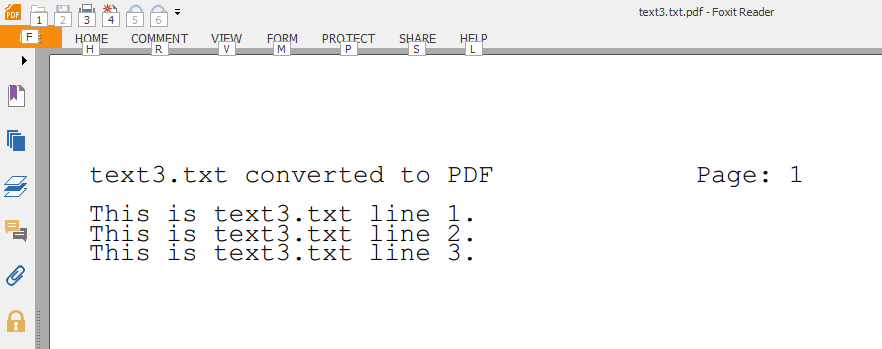
Finally, here's a cropped screenshot of the third output file, text3.txt.pdf, in Foxit PDF Reader (a lightweight PDF reader that I use):

Also look up:

[xtopdf] Batch convert text files to PDF (with xtopdf and fileinput)

for another variation on the approach to converting text files to PDF.

Speaking of generators, also check out this other post about them:

Python generators are pluggable

The image at the top of the post is of the earliest Joker card by Samuel Hart c. 1863, according to Wikipedia:

Joker (playing card)

Enjoy.

- Vasudev Ram - Online Python training and consulting

Get updates on my software products / ebooks / courses.

Jump to posts: Python   DLang   xtopdf

Subscribe to my blog by email

My ActiveState recipes

FlyWheel - Managed WordPress Hosting


Wednesday, July 11, 2012

Guide to installing and using xtopdf, including creating simple PDF e-books


By Vasudev Ram


This is a guide to using my open source xtopdf toolkit to create PDF from text and DBF files (including creating simple PDF e-books)

This guide was initially posted on the original iText site http://itext.ugent.be, Bruno Lowagie's site for his product iText, a Java PDF creation library, in a section about other PDF tools. That site is gone now, so I'm re-posting the guide here (with some edits/updates).

xtopdf is both a set of end-user tools and a library for use by developers, to create PDF from various input formats. This post is for end-users.

The steps are for the Windows platform. The steps for UNIX / Linux platforms are similar in principle but differ in the details.

xtopdf should work with any version of Python 2.x which is >= 2.2. Python 2.7.x is the current version of Python 2.x. I have not tested it yet on Python 3.x. I have tested xtopdf with at least versions 2.2.x through to 2.7.x (for some values of x) and did not come across any issues.

1. Get Python from here:
http://www.python.org/ftp/

2. Get Reportlab open source version 1.21 here:

http://www.reportlab.com/ftp/

(Don't use ReportLab 2.0 although it is available. I've not tested xtopdf with it.
ReportLab 1.21 is the latest stable version in the version 1 series.)

Install it following the instructions in the README file.
It should be straightforward. The main points to take care of are:

2.1 First, before installing ReportLab, run Python once (you may have to add the directory/folder where Python was installed, say C:\Python27, to your PATH variable first). Once that directory/folder is added to your PATH (preferably via Control Panel), open a DOS prompt.

At this prompt, type:

python

This should start the Python interpreter. You will get a one or two line message with the Python version, and then the Python interpreter prompt.

2.2. At this prompt, type the following two lines:

import sys
print sys.path

This should display a list of all the directories/folders that are in the Python PATH (the environment variable PYTHONPATH - different from the DOS variable PATH) - an internal Python variable that gets set automatically, upon startup of the interpreter, to a set of default directories. This variable is analogous to the DOS PATH variable. In this list of directories, look for "C:\Python27\lib\site-packages" as one of the directories. It should be there by default.

If it is there, then exit the Python interpreter by typing Ctrl-Z and Enter.

3. Now install Reportlab:

Unzip the ReportLab_1_21.tgz file with WinZip, into some folder, say c:\reportlab.
This will create a folder called either:

a) reportlab_1.21 with a folder called reportlab under it

or

b) just a folder called reportlab.

If a), then move (or copy) the reportlab folder (which is under reportlab_1.21) to under C:\Python27\Lib\site-packages .

If b), then move the reportlab folder to under C:\Python27\Lib\site-packages.

The above steps should make ReportLab work.

An alternative way is to just unzip the reportlab .tgz file into some folder, say, C:\RL, and then create a file called, say, reportlab.pth, which contains just one line - the path to this folder where the extracted contents get stored.e.g. C:\RL\reportlab . Please check that step out (in the ReportLab .tgz file's README file for the exact details).

4. After the above steps, to check that Reportlab works, go to a DOS prompt again, run python again as before, and then at the Python prompt, enter either or both of the following commands (on separate lines):

import reportlab

from reportlab import pdfgen

If either or both of these above commands work (and if there is no error message), it means that Reportlab is properly installed.

5. Now you can install xtopdf.

Get xtopdf here: http://sourceforge.net/projects/xtopdf

After downloading the file, unzip it into a folder, say c:\xtopdf. This will create a folder called xtopdf-1.0 under C:\xtopdf. Go to that folder.

There are many Python programs here with the filename extension ".py".

To run, e.g., WritePDF.py, do this:

python WritePDF.py some_file.txt

where some_file.txt is a text file that you want to convert to PDF.

This will run WritePDF.py and the output will be a PDF file called some_file.pdf.
Try opening it in Adobe Reader.

Similarly try running some more programs:

python DBFReader.py test1.dbf (or test2.dbf or test3.dbf or test4.dbf - all of which are in the package)

This should read the DBF file and display its metadata (file header and field headers) and data records to standard output - the screen.

python DBFToPDF.py test1.dbf test1.pdf

This should do the same as the above (DBFReader.py), except that instead of the output going to the screen, it will go to a file called test1.pdf.

And similarly, try out a few other programs. Most or all of the programs can be run as "python prog_name.py". Some require one or more command-line arguments (all of them require at least one command-line argument, at least an input file).

Be sure to try running this one also, to create PDF e-books from text files:

python PDFBook.py book1.pdf book1.txt

This one reads a list of chapter file names (where each chapter is one .txt file) and corresponding chapter titles, from the 2nd argument book1.txt, and creates a PDF e-book out of all the chapters combined, using the chapter title as the heading for each page.

This is a very quick and simple way of creating simple PDF e-books from a set of chapters, one chapter per text file.

- Vasudev Ram - Dancing Bison Enterprises