Showing posts with label PDF-creation. Show all posts

Tuesday, December 6, 2016

[xtopdf] Wildcard text files to PDF with xtopdf and glob

By Vasudev Ram


First joker card image attribution

This is another in my series of applications that use xtopdf (source), my Python toolkit for PDF creation from other formats.

[ Here's a good overview of xtopdf, its uses, supported platforms and formats, etc. ]

I called this app WildcardTextToPDFpy.. It lets you specify a wildcard for text files, and then converts each of the text files matching the wildcard (like grades*2016.txt or monthly*sales.txt) [1], into corresponding PDF files - with the same names but with '.pdf' appended.

[1] For example, the wildcard grades*2016.txt could match grades-math-2016.txt and grades-bio-2016.txt (think a school or college), while monthly*sales.txt might match monthly-car-sales.txt and monthly-bike-sales.txt (think a vehicle dealership), so a PDF file will be generated for each text file matching the given wildcard.

The program uses the iglob function from the glob module in Python's standard library, similar to how this recent other post:

Simple directory lister with multiple wildcard arguments

used the glob function. The difference is that glob returns a list, while iglob returns a generator, so it will return the matching filenames lazily, on demand, as shown here:
$ python
>>> g1 = glob.glob('text*.txt')
>>> g1
['text1.txt', 'text2.txt', 'text3.txt']
>>>>>> g2 = glob.iglob('text*.txt')
>>> g2
<generator object iglob at 0x027C2850>
>>> next(g2)
'text1.txt'
>>> for f in g2:
...     print f
...
text2.txt
text3.txt

Here is the code for WildcardTextToPDF.py:
from __future__ import print_function

# WildcardTextToPDF.py
# Convert the text files specified by a filename wildcard,
# like '*.txt' or 'foo*bar*baz.txt', to PDF files.
# Each text file's content goes to a separate PDF file, with the 
# PDF file name being the full text file name (including the 
# '.txt' part), with '.pdf' appended.
# Requires:
# - xtopdf: https://bitbucket.org/vasudevram/xtopdf
# - ReportLab: https://www.reportlab.com/ftp/reportlab-1.21.1.tar.gz
# Author: Vasudev Ram
# Copyright 2016 Vasudev Ram
# Product store: https://gumroad.com/vasudevram
# Web site: https://vasudevram.github.io
# Blog: http://jugad2.blogspot.com

import sys
import os
import glob
from PDFWriter import PDFWriter

def usage(argv):
    sys.stderr.write("Usage: python {} txt_filename_pattern\n".format(argv[0]))
    sys.stderr.write("E.g. python {} foo*.txt\n".format(argv[0]))

def text_to_pdf(txt_filename):
    pw = PDFWriter(txt_filename + '.pdf')
    pw.setFont('Courier', 12)
    pw.setHeader('{} converted to PDF'.format(txt_filename))
    pw.setFooter('PDF conversion by xtopdf: https://google.com/search?q=xtopdf')

    with open(txt_filename) as txt_fil:
        for line in txt_fil:
            pw.writeLine(line.strip('\n'))
        pw.savePage()

def main():
    if len(sys.argv) != 2:
        usage(sys.argv)
        sys.exit(0)

    try:
        for filename in glob.glob(sys.argv[1]):
            print("Converting {} to {}".format(filename, filename + '.pdf'))
            text_to_pdf(filename)
    except Exception as e:
        print("Caught Exception: type: {}, message: {}".format(\
            e.__class__, str(e)))

if __name__ == '__main__':
    main()
And here are the relevant files before and after running the program, with the program's output in between:
$ dir text*.txt/b
text1.txt
text2.txt
text3.txt

$ python WildcardTextToPDF2.py text*.txt
Converting text1.txt to text1.txt.pdf
Converting text2.txt to text2.txt.pdf
Converting text3.txt to text3.txt.pdf

$ dir text?.txt*/od/b
text1.txt
text2.txt
text3.txt
text1.txt.pdf
text2.txt.pdf
text3.txt.pdf
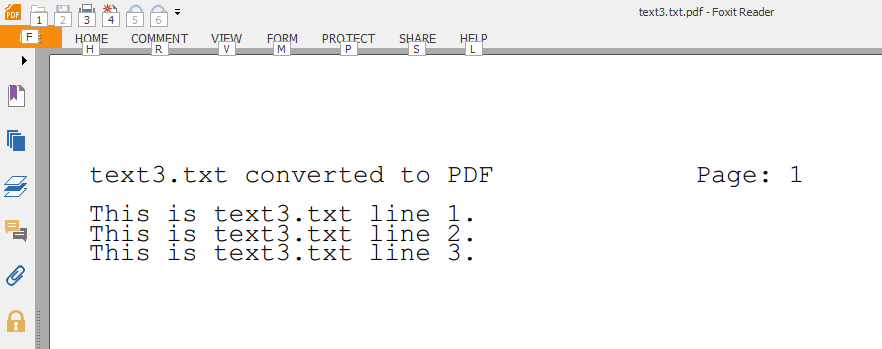
Finally, here's a cropped screenshot of the third output file, text3.txt.pdf, in Foxit PDF Reader (a lightweight PDF reader that I use):

Also look up:

[xtopdf] Batch convert text files to PDF (with xtopdf and fileinput)

for another variation on the approach to converting text files to PDF.

Speaking of generators, also check out this other post about them:

Python generators are pluggable

The image at the top of the post is of the earliest Joker card by Samuel Hart c. 1863, according to Wikipedia:

Joker (playing card)

Enjoy.

- Vasudev Ram - Online Python training and consulting

Get updates on my software products / ebooks / courses.

Jump to posts: Python   DLang   xtopdf

Subscribe to my blog by email

My ActiveState recipes

FlyWheel - Managed WordPress Hosting


Thursday, January 7, 2016

Code for recent post about PDF from a Python pipeline

By Vasudev Ram

In this recent post:

Generate PDF from a Python-controlled Unix pipeline ,

I forgot to include the code for the program PopenToPDF.py. Here it is now:
# PopenToPDF.py
# Demo program to read text from a shell pipeline using 
# subprocess.Popen, and write the text to PDF using xtopdf.
# Author: Vasudev Ram
# Copyright (C) 2016 Vasudev Ram - http://jugad2.blogspot.com

import sys
import subprocess
from PDFWriter import PDFWriter

def error_exit(message):
    sys.stderr.write(message + '\n')
    sys.stderr.write("Terminating.\n")
    sys.exit(1)

def main():
    try:
        # Create and set up a PDFWriter instance.
        pw = PDFWriter("PopenTo.pdf")
        pw.setFont("Courier", 12)
        pw.setHeader("Use subprocess.Popen to read pipe and write to PDF.")
        pw.setFooter("Done using selpg, xtopdf, Python and ReportLab, on Linux.")

        # Set up a pipeline with nl and selpg such that we can read from its stdout.
        # nl numbers the lines of the input.
        # selpg extracts pages 3 to 5 from the input.
        pipe = subprocess.Popen("nl -ba 1000-lines.txt | selpg -s3 -e5", \
            shell=True, bufsize=-1, stdout=subprocess.PIPE, 
            stderr=sys.stderr).stdout

        # Read from the pipeline and write the data to PDF, using the PDFWriter instance.
        for idx, line in enumerate(pipe):
            pw.writeLine(str(idx).zfill(8) + ": " + line)
    except IOError as ioe:
        error_exit("Caught IOError: {}".format(str(ioe)))
    except Exception as e:
        error_exit("Caught Exception: {}".format(str(e)))
    finally:
        pw.close()

main()
I ran it in the usual way with:
$ python PopenToPDF.py
to get the output shown in the previous post describing PopenToPDF.

Also, this is the one-off script, gen-file.py, that created the 1000 line input file:
with open("1000-lines.txt", "w") as fil:
    for i in range(1000):
        fil.write("This is a line of text.\n")
fil.close()

- Vasudev

- Vasudev Ram - Online Python training and programming

Signup to hear about new products and services I create.

Posts about Python  Posts about xtopdf

My ActiveState recipes

Generate PDF from a Python-controlled Unix pipeline


By Vasudev Ram


This post is about a new xtopdf app I wrote, called PopenToPDF.py.

(xtopdf is my PDF generation toolkit, written in Python. The toolkit consists of a core library and multiple applications built using it.)

This program, PopenToPDF, shows how to use xtopdf to generate PDF output from any Python-controlled Unix pipeline. It uses the subprocess Python module.

I had written a few posts earlier about the uses of StdinToPDF.py, another xtopdf app [1]

(There are many kinds of pipeline"; it is a powerful concept.)

StdinToPDF is an application of xtopdf that can be used at the end of a Unix or Windows pipeline, to publish the text output of the pipeline to PDF.

[1] Here are some of those posts about StdinToPDF:

a) PDFWriter can create PDF from standard input

b) Print selected text pages to PDF with Python, selpg and xtopdf on Linux

c) Generate Windows Task List to PDF with xtopdf

PopenToPDF has the same general goal as StdinToPDF (to allow creation of a pipeline whose final output is PDF), but works somewhat differently.

Instead of just being used passively (like StdinToPDF) as the last component in a pipeline run from the command line, PopenToPDf is a Python program that itself sets up and runs a pipeline (of all the preceding commands, excepting itself), using subprocess.Popen, and then reads the output of that pipeline, programmatically, and converts the text it reads to PDF. So it is a different approach that may allow for other possibilities for customization.

For the example, I created an input text file of 1000 lines, via a small one-off script. The file is called 1000-lines.txt.

The pipeline (created by PopenToPDF) runs "nl -ba" to add sequential line numbers to each line of the input file. (nl is a Unix command to number lines.) Then the output is passed to my selpg utility (a command-line utility in C), which is a filter that reads its input and selects only a specified range of pages to pass on to the output. (Full details of the selpg utility, including explanation of its logic, source code, and the build steps, are at the URL in the previous sentence, or at links accessible from that URL.)

(This page on sites.harvard.edu is a good resource for Linux command line utility development, and also references my IBM dW article about selpg.)

PopenToPDF sets up the above pipeline (nl -ba piped to selpg), and then reads all the lines from it, adds its own line numbers to the input, and writes it all to a PDF file.

Thus we end up with two sets of line numbers prefixed to each line (in the PDF): the original line numbers added by the nl command, which represents the position of each line extracted from the original file, and the serial numbers (starting from 0) for the subset of lines that PopenToPDF sees.

I did this so that we could verify that the pipeline is extracting the right lines that we specified, by looking at the relative and absolute line numbers in the output (screenshots below).

Here is a screenshot of the first page of the PDF output:


And here is a screenshot of the last page, page 4, of the PDF output:


You can see that the last relative line number (added by PopenToPDF, in the extreme left number column) is 215, and the first was 0 (on the first page), so the number of lines extracted by selpg is 216, which corresponds to what we asked selpg for by specifying a start page of 3 (-s3) and an end page of 5 (-e5), since there are 72 lines per page (the default) and 72 * (5 -3 + 1) = 72 * 3 = 216. You can do a similar calculation for the absolute line numbers shown, to verify that we have extracted not only the right number of pages, but also the right pages.

So this approach (using Popen) can be used to run a pipeline under control of a Python program, read the output of the pipeline, and do some further processing on it. Obviously, it is a generic approach, not limited to producing PDF. It could be used for any other purpose where you want to run a pipeline under program control and do something with the output of the pipeline, in your own Python code.

I'll end with a few points about related topics:

This program is actually an example of a category of data processing operations commonly used in organizations, which can be broadly described as starting with some data source, and passing it through a series of transformations until we have the final output we want.

Often, but not always, the input for these transformations is downloaded from some database or application (of the organization), and/or the output is uploaded to another database or application (also of the organization).

In some of these cases, the process is called ETL, meaning Extract, Transform, Load. This operation is also related to IT system integration.

In general, these tasks can consist of a combination of the use of existing components (programs) and purpose-written code in a compiled or interpreted language. The operation can also consist of a combination of manual and automated steps.

When there is enough uniformity in the data and needed processing rules across runs, using more automation leads to more time and cost savings. Some amount of variation in the data or rules can be handled by parameterization of input and output filenames, database connections, table names, use of conditional logic, etc.

Finally, in the process of writing this program and post (across a couple of sessions), I came across mentions of microservices in tech forums. Microservices have been in the news for a while. So I looked up definitions of microservices and realized that they are in some ways similar to Unix pipelines and the Unix philosophy of creating small tools that do one thing well, and then combining them to achieve bigger tasks.

If you're interested in pipes and Python and their intersection, also check out this HN comment by me, which lists multiple other Python pipe-like tools, including one (pipe_controller) by me:

Yes, pyp is interesting. So are some other roughly similar Python tools

- Enjoy.

- Vasudev Ram - Online Python training and programming

Signup to hear about new products and services I create.

Posts about Python  Posts about xtopdf

My ActiveState recipes


Wednesday, December 23, 2015

Generate Windows Task List to PDF with xtopdf

By Vasudev Ram


While working at the DOS command line in Windows, I had the idea of using the DOS TASKLIST command along with xtopdf, my PDF generation toolkit, to generate a list of currently running Windows tasks to a PDF file, along with some other info, such as whether a task is a service or a console process, the process id, the memory usage, etc. The TASKLIST command shows all that information, by default.

I also sorted the output in ascending order by the Mem Usage field, by passing it through the DOS SORT command. (I could have sorted it by any other field such as the Image Name or the PID, of course.) I starred out some of the fields in the output.

Here are the steps to generate a Windows task list as a PDF, using xtopdf:

( I use $ as the prompt, even in DOS :)

1: Run TASKLIST and redirect its output to a text file.

$ tasklist > tasklist.out

2: Sort the file into another file.

$ sort /+65 tasklist.out > tasklist.srt

(Sort the output of TASKLIST by the character position of the Mem Usage field.)

3: Go edit tasklist to put the header lines back at the top :)
[ They get dislodged by the sort. ]

[ This is not Unix, so you can't easily do the fast, fluid command-line data munging that you can on Unix, unless you use something like Cygwin or UWin.

UWin was developed by David Korn, creator of the Korn Shell, for Windows. You can get UWin from the AT&T site here (after doing a convoluted license agreement dance, last time I checked). But IMO, the dance is not too long, and is worth it, to get a suite of Unix tools that work well on Windows, and UWin is also smaller & lighter than Cygwin, though not so comprehensive.
Be sure to read the section "Korn shell and Microsoft" at the David Korn link above :-) ]

4: Pipe the sorted task list to StdinToPDF, to generate the PDF output.

$ type tasklist.srt | python StdinToPDF.py tasklist.pdf

We just pipe the output of TASKLIST to StdinToPDF.py (an xtopdf app), which can be used at the end of any arbitrary command pipeline that generates text (on Unix / Windows / Linux / Mac OS X), to convert that text to PDF.

A screenshot of the PDF output I got (viewed in Foxit PDF Reader), is shown at the top of this post.

- Enjoy.

- Vasudev Ram - Online Python training and programming

Signup to hear about new products and services I create.

Posts about Python  Posts about xtopdf

My ActiveState recipes

Wednesday, October 7, 2015

Create PDF invoices with Python and xtopdf

By Vasudev Ram


This post shows the basics of how to create a PDF invoice using Python and xtopdf, my Python library for PDF generation.

Here is the code, in file InvoiceToPDF.py. It's rudimentary, but shows the basics involved, and can be built upon to create more complex invoices with more information:
'''
InvoiceToPDF.py
This program shows how to convert invoice data from
Python data structures into a PDF invoice.
Author: Vasudev Ram
Copyright 2015 Vasudev Ram
'''

import sys
import time
from PDFWriter import PDFWriter

def error_exit(message):
    sys.stderr.write(message)
    sys.exit(1)

def InvoiceToPDF(pdf_filename, data):
    try:
        # Get the invoice data from the dict.
        font_name = data['font_name']
        font_size = data['font_size']
        header = data['header']
        footer = data['footer']
        invoice_number = data['invoice_number']
        invoice_customer = data['invoice_customer']
        invoice_date_time = data['invoice_date_time']
        invoice_line_items = data['invoice_line_items']
    except KeyError as ke:
        error_exit("KeyError: {}".format(ke))
    try:
        with PDFWriter(pdf_filename) as pw:
            # Generate the PDF invoice from the data.
            pw.setFont(font_name, font_size)
            pw.setHeader(header)
            pw.setFooter(footer)
            pw.writeLine('-' * 60)
            pw.writeLine('Invoice Number: ' + str(invoice_number))
            pw.writeLine('Invoice Customer: ' + invoice_customer)
            pw.writeLine('Invoice Date & Time: ' + invoice_date_time)
            pw.writeLine('-' * 60)
            pw.writeLine('Invoice line items:')
            pw.writeLine('S. No.'.zfill(5) + ' ' + 'Description'.ljust(10) + \
            ' ' + 'Unit price'.ljust(10) + ' ' + 'Quantity'.ljust(10) + ' ' + \
            str('Ext. Price').rjust(8))
            pw.writeLine('-' * 60)
            sum_ext_price = 0
            for line_item in invoice_line_items:
                id, desc, price, quantity = line_item
                pw.writeLine(str(id).zfill(5) + ' ' + desc.ljust(10) + \
                ' ' + str(price).rjust(10) + ' ' + str(quantity).rjust(10) + \
                str(price * quantity).rjust(10))
                sum_ext_price += price * quantity
            pw.writeLine('-' * 60)
            pw.writeLine('Total:'.rjust(38) + str(sum_ext_price).rjust(10))
            pw.writeLine('-' * 60)
    except IOError as ioe:
        error_exit("IOError: {}".format(ioe))
    except Exception as e:
        error_exit("Exception: {}".format(e))

def testInvoiceToPDF(pdf_filename):
    # Get the Unix-style date from the system ...
    cdt = time.ctime(time.time()).split()
    # ... and format it a little differently.
    current_date_time = cdt[0] + ' ' + cdt[1] + ' ' + cdt[2] + \
    ', ' + cdt[4] + ', ' + cdt[3][:5]
    data = { \
        'font_name': 'Courier', \
        'font_size': 12, \
        'header': 'Customer Invoice', \
        'footer': 'Generated by xtopdf: http://bit.ly/xtopdf', \
        'invoice_number': 12345, \
        'invoice_customer': 'Mr. Vasudev Ram', \
        'invoice_date_time': current_date_time, \
        'invoice_line_items': \
        [
            [ 01, 'Chair', 100, 10 ], \
            [ 02, 'Table', 200, 20 ], \
            [ 03, 'Cupboard', 300, 30 ], \
            [ 04, 'Bed', 400, 40 ], \
            [ 05, 'Wardrobe', 500, 50 ], \
        ]
    }
    InvoiceToPDF(pdf_filename, data)
    
def main():
    if len(sys.argv) != 2:
        error_exit("Usage: {} pdf_filename".format(sys.argv[0]))
    testInvoiceToPDF(sys.argv[1]) 

if __name__ == '__main__':
    main()
Run the program with a command like:
$ python InvoiceToPDF.py Invoice.pdf
Here is a screenshot of the resulting PDF invoice in Foxit Reader:
Note: The use of the dict named data is not strictly needed. I simply used it to illustrate the technique of packing the multiple data items needed for the invoice, into a single dict, and then unpack those needed items in the function that actually generates the PDF. I could have done away with the dict and just used standalone variables in this simple program. But in a larger program where the invoice data is collected / generated in one or more functions, and the PDF is generated in another function, this technique or something similar can be of use, to reduce the number of individual arguments that need to be passed around.

- Enjoy.

- Vasudev Ram - Online Python training and programming

Dancing Bison Enterprises

Signup to hear about new products and services that I create.

Posts about Python  Posts about xtopdf

Wednesday, March 11, 2015

ASCII Table to PDF with xtopdf

By Vasudev Ram

Recently, I had the need for an ASCII table lookup, which I searched for and found, thanks to the folks here:

www.ascii-code.com

That gave me the idea of writing a simple program to generate an ASCII table in PDF. Here is the code for a part of that table - the first 32 (0 to 31) ASCII characters, which are the control characters:

# ASCIITableToPDF.py
# Author: Vasudev Ram - http://www.dancingbison.com
# Demo program to show how to generate an ASCII table as PDF,
# using the xtopdf toolkit for PDF creation from Python.
# Generates a PDF file with information about the 
# first 32 ASCII codes, i.e. the control characters.
# Based on the ASCII Code table at http://www.ascii-code.com/

import sys
from PDFWriter import PDFWriter

# Define the header information.
column_names = ['DEC', 'OCT', 'HEX', 'BIN', 'Symbol', 'Description']
column_widths = [4, 6, 4, 10, 7, 20]

# Define the ASCII control character information.
ascii_control_characters = \
"""
0    000    00    00000000    NUL    �         Null char
1    001    01    00000001    SOH             Start of Heading
2    002    02    00000010    STX             Start of Text
3    003    03    00000011    ETX             End of Text
4    004    04    00000100    EOT             End of Transmission
5    005    05    00000101    ENQ             Enquiry
6    006    06    00000110    ACK             Acknowledgment
7    007    07    00000111    BEL             Bell
8    010    08    00001000    BS             Back Space
9    011    09    00001001    HT    	         Horizontal Tab
10    012    0A    00001010    LF    
         Line Feed
11    013    0B    00001011    VT             Vertical Tab
12    014    0C    00001100    FF             Form Feed
13    015    0D    00001101    CR    
         Carriage Return
14    016    0E    00001110    SO             Shift Out / X-On
15    017    0F    00001111    SI             Shift In / X-Off
16    020    10    00010000    DLE             Data Line Escape
17    021    11    00010001    DC1             Device Control 1 (oft. XON)
18    022    12    00010010    DC2             Device Control 2
19    023    13    00010011    DC3             Device Control 3 (oft. XOFF)
20    024    14    00010100    DC4             Device Control 4
21    025    15    00010101    NAK             Negative Acknowledgement
22    026    16    00010110    SYN             Synchronous Idle
23    027    17    00010111    ETB             End of Transmit Block
24    030    18    00011000    CAN             Cancel
25    031    19    00011001    EM             End of Medium
26    032    1A    00011010    SUB             Substitute
27    033    1B    00011011    ESC             Escape
28    034    1C    00011100    FS             File Separator
29    035    1D    00011101    GS             Group Separator
30    036    1E    00011110    RS             Record Separator
31    037    1F    00011111    US             Unit Separator
"""

# Create and set some of the fields of a PDFWriter instance.
pw = PDFWriter("ASCII-Table.pdf")
pw.setFont("Courier", 12)
pw.setHeader("ASCII Control Characters - 0 to 31")
pw.setFooter("Generated by xtopdf: http://slid.es/vasudevram/xtopdf")

# Write the column headings to the output.
column_headings = [ str(val).ljust(column_widths[idx]) \
    for idx, val in enumerate(column_names) ]
pw.writeLine(' '.join(column_headings))

# Split the string into lines, omitting the first and last empty lines.
for line in ascii_control_characters.split('\n')[1:-1]:

    # Split the line into space-delimited fields.
    lis = line.split()

    # Join the words of the Description back into one field, 
    # since it was split due to having internal spaces.
    lis2 = lis[0:5] + [' '.join(lis[6:])]

    # Write the column data to the output.
    lis3 = [ str(val).ljust(column_widths[idx]) \
        for idx, val in enumerate(lis2) ]
    pw.writeLine(' '.join(lis3))

pw.close()
Discerning readers will notice the effect of some of the said control characters on the displayed program code :)

You can run the program with:
python ASCIITableToPDF.py
or
py ASCIITableToPDF.py
or
./ASCIITableToPDF.py
or
ASCIITableToPDF.py
Figuring what needs to be done for each of the above methods of invocation to work, is (as they say in computer textbooks), left as an exercise for the reader :)

(There is a bit of subtlety involved, at least for beginners, particularly if you want to do it on both Linux and Windows.)

And here is a screenshot of the PDF output of the program:


- Vasudev Ram - Online Python training and programming

Dancing Bison Enterprises

Signup to hear about new products or services from me.

Posts about Python  Posts about xtopdf

Contact Page

Saturday, March 7, 2015

PDFCrowd and its HTML to PDF API (for Python and other languages)

By Vasudev Ram


PDFcrowd is a web service that I came across recently. It allows users to convert HTML content to PDF. This can be done both via the PDFcrowd site - by entering either the content or the URL of an HTML page to be converted to PDF - or via the PDFcrowd API, which has support for multiple programming languages, including for Python. I tried multiple approaches, and all worked fairly well.

A slightly modified version of a simple PDFcrowd API example from their site, is shown below.

# Demo program to show how to use the PDFcrowd API
# to convert HTML content to PDF.
# Author: Vasudev Ram - www.dancingbison.com

import pdfcrowd

try:
    # create an API client instance
    # Dummy credentials used; to actually run the program, enter your own.
    client = pdfcrowd.Client("user_name", "api_key")
    client.setAuthor('author_name')
    # Dummy credentials used; to actually run the program, enter your own.
    client.setUserPassword('user_password')

    # Convert a web page and store the generated PDF in a file.
    pdf = client.convertURI('http://www.dancingbison.com')
    with open('dancingbison.pdf', 'wb') as output_file:
        output_file.write(pdf)
    
    # Convert a web page and store the generated PDF in a file.
    pdf = client.convertURI('http://jugad2.blogspot.in/p/about-vasudev-ram.html')
    with open('jugad2-about-vasudevram.pdf', 'wb') as output_file:
        output_file.write(pdf)

    # convert an HTML string and save the result to a file
    output_file = open('html.pdf', 'wb')
    html = "My Small HTML File"
    client.convertHtml(html, output_file)
    output_file.close()

except pdfcrowd.Error, why:
    print 'Failed:', why
I used three calls to the API. For the first two calls, the inputs were: 1) my web site, 2) the about page of my blog.

Screenshots of the results of those two calls are below. You can see that they correspond closely to the originals.

Screenshot of generated PDF of dancingbison.com site


Screenshot of generated PDF of About Vasudev Ram page on jugad2.blogspot.com blog


- Vasudev Ram - Online Python training and programming

Dancing Bison Enterprises

Signup to hear about new Python or PDF related products created by me.

Posts about Python  Posts about xtopdf

Contact Page

Wednesday, February 25, 2015

Publish SQLite data to PDF using named tuples

By Vasudev Ram


Some time ago I had written this post:

Publishing SQLite data to PDF is easy with xtopdf.

It showed how to get data from an SQLite (Wikipedia) database and write it to PDF, using xtopdf, my open source PDF creation library for Python.

Today I was browsing the Python standard library docs, and so thought of modifying that program to use the namedtuple data type from the collections module of Python, which is described as implementing "High-performance container datatypes". The collections module was introduced in Python 2.4.
Here is a modified version of that program, SQLiteToPDF.py, called SQLiteToPDFWithNamedTuples.py, that uses named tuples:
# SQLiteToPDFWithNamedTuples.py
# Author: Vasudev Ram - http://www.dancingbison.com
# SQLiteToPDFWithNamedTuples.py is a program to demonstrate how to read 
# SQLite database data and convert it to PDF. It uses the Python
# data structure called namedtuple from the collections module of 
# the Python standard library.

from __future__ import print_function
import sys
from collections import namedtuple
import sqlite3
from PDFWriter import PDFWriter

# Helper function to output a string to both screen and PDF.
def print_and_write(pw, strng):
    print(strng)
    pw.writeLine(strng)

try:

    # Create the stocks database.
    conn = sqlite3.connect('stocks.db')
    # Get a cursor to it.
    curs = conn.cursor()

    # Create the stocks table.
    curs.execute('''DROP TABLE IF EXISTS stocks''')
    curs.execute('''CREATE TABLE stocks
                 (date text, trans text, symbol text, qty real, price real)''')

    # Insert a few rows of data into the stocks table.
    curs.execute("INSERT INTO stocks VALUES ('2006-01-05', 'BUY', 'RHAT', 100, 25.1)")
    curs.execute("INSERT INTO stocks VALUES ('2007-02-06', 'SELL', 'ORCL', 200, 35.2)")
    curs.execute("INSERT INTO stocks VALUES ('2008-03-07', 'HOLD', 'IBM', 300, 45.3)")
    conn.commit()

    # Create a namedtuple to represent stock rows.
    StockRecord = namedtuple('StockRecord', 'date, trans, symbol, qty, price')

    # Run the query to get the stocks data.
    curs.execute("SELECT date, trans, symbol, qty, price FROM stocks")

    # Create a PDFWriter and set some of its fields.
    pw = PDFWriter("stocks.pdf")
    pw.setFont("Courier", 12)
    pw.setHeader("SQLite data to PDF with named tuples")
    pw.setFooter("Generated by xtopdf - https://bitbucket.org/vasudevram/xtopdf")

    # Write header info.
    hdr_flds = [ str(hdr_fld).rjust(10) + " " for hdr_fld in StockRecord._fields ]
    hdr_fld_str = ''.join(hdr_flds)
    print_and_write(pw, '=' * len(hdr_fld_str))
    print_and_write(pw, hdr_fld_str)
    print_and_write(pw, '-' * len(hdr_fld_str))

    # Now loop over the fetched data and write it to PDF.
    # Map the StockRecord namedtuple's _make class method
    # (that creates a new instance) to all the rows fetched.
    for stock in map(StockRecord._make, curs.fetchall()):
        row = [ str(col).rjust(10) + " " for col in (stock.date, \
        stock.trans, stock.symbol, stock.qty, stock.price) ]
        # Above line can instead be written more simply as:
        # row = [ str(col).rjust(10) + " " for col in stock ]
        row_str = ''.join(row)
        print_and_write(pw, row_str)

    print_and_write(pw, '=' * len(hdr_fld_str))

except Exception as e:
    print("ERROR: Caught exception: " + e.message)
    sys.exit(1)

finally:
    pw.close()
    conn.close()

This time I've imported print_function so that I can use print as a function instead of as a statement.

Here's a screenshot of the PDF output in Foxit PDF Reader:


- Vasudev Ram - Online Python training and programming

Dancing Bison Enterprises

Signup to hear about new products or services from me.

Posts about Python  Posts about xtopdf

Contact Page

Sunday, February 22, 2015

Excel to PDF with xlwings and xtopdf

By Vasudev Ram


Excel to PDF with xlwings and xtopdf - how many x in that? :)

I came across xlwings recently via the Net.

xlwings is by Zoomer Analytics, a startup based in Zürich, Switzerland, by a team with background in financial institutions.

Excerpt from the xlwings documentation:

[ xlwings is a BSD-licensed Python library that makes it easy to call Python from Excel and vice versa:

Interact with Excel from Python using a syntax that is close to VBA yet Pythonic.

Replace your VBA macros with Python code and still pass around your workbooks as easily as before.

xlwings fully supports NumPy arrays and Pandas DataFrames. It works with Microsoft Excel on Windows and Mac. ]

I checked out the xlwings quickstart.

Then did a quick test of using xlwings with xtopdf, my toolkit for PDF creation, to create a simple Excel spreadsheet, then read back its contents, and convert that to PDF.

Here is the code:
"""
xlwingsToPDF.py
A demo program to show how to convert the text extracted from Excel 
content, using xlwings, to PDF. It uses the xlwings library, to create 
and read the Excel input, and the xtopdf library to write the PDF output.
Author: Vasudev Ram - http://www.dancingbison.com
Copyright 2015 Vasudev Ram
"""

import sys
from xlwings import Workbook, Sheet, Range, Chart
from PDFWriter import PDFWriter

# Create a connection with a new workbook.
wb = Workbook()

# Create the Excel data.
# Column 1.
Range('A1').value = 'Foo 1'
Range('A2').value = 'Foo 2'
Range('A3').value = 'Foo 3'
# Column 2.
Range('B1').value = 'Bar 1'
Range('B2').value = 'Bar 2'
Range('B3').value = 'Bar 3'

pw = PDFWriter("xlwingsTo.pdf")
pw.setFont("Courier", 10)
pw.setHeader("Testing Excel conversion to PDF with xlwings and xtopdf")
pw.setFooter("xlwings: http://xlwings.org --- xtopdf: http://slid.es/vasudevram/xtopdf")

for row in Range('A1..B3').value:
    s = ''
    for col in row:
        s += col + ' | '
    pw.writeLine(s)

pw.close()
I ran it with this command:
py xlwingsToPDF.py
and here is a screenshot of the output PDF file:


Note: The xlwings library can be installed with:
pip install xlwings
But a prerequisite for it, pywin32, did not install automatically. pywin32 is a very useful and powerful Windows API wrapper library for Python, by Mark Hammond. I've used it a few times earlier, in earlier Python versions than Python 2.7.8, which I currently am using. I usually installed it directly in those earlier versions. This time, though it was a dependency for xlwings, it did not get installed automatically, and the above Python program gave a runtime error. I had to manually install pywin32 before the program could work.

- Enjoy.

- Vasudev Ram - Dancing Bison Enterprises

Signup to hear about new products or services from me.

Contact Page

Wednesday, January 28, 2015

HTML text to PDF with Beautiful Soup and xtopdf

By Vasudev Ram


Recently, I thought of getting the text from HTML documents and putting that text to PDF. So I did it :)

Here's how:

"""
HTMLTextToPDF.py
A demo program to show how to convert the text extracted from HTML 
content, to PDF. It uses the Beautiful Soup library, v4, to 
parse the HTML, and the xtopdf library to generate the PDF output.
Beautiful Soup is at: http://www.crummy.com/software/BeautifulSoup/
xtopdf is at: https://bitbucket.org/vasudevram/xtopdf
Guide to using and installing xtopdf: http://jugad2.blogspot.in/2012/07/guide-to-installing-and-using-xtopdf.html
Author: Vasudev Ram - http://www.dancingbison.com
Copyright 2015 Vasudev Ram
"""

import sys
from bs4 import BeautifulSoup
from PDFWriter import PDFWriter

def usage():
    sys.stderr.write("Usage: python " + sys.argv[0] + " html_file pdf_file\n")
    sys.stderr.write("which will extract only the text from html_file and\n")
    sys.stderr.write("write it to pdf_file\n")

def main():

    # Create some HTML for testing conversion of its text to PDF.
    html_doc = """
    <html>
        <head>
            <title>
            Test file for HTMLTextToPDF
            </title>
        </head>
        <body>
        This is text within the body element but outside any paragraph.
        <p>
        This is a paragraph of text. Hey there, how do you do?
        The quick red fox jumped over the slow blue cow.
        </p>
        <p>
        This is another paragraph of text.
        Don't mind what it contains.
        What is mind? Not matter.
        What is matter? Never mind.
        </p>
        This is also text within the body element but not within any paragraph.
        </body>
    </html>
    """

    pw = PDFWriter("HTMLTextTo.pdf")
    pw.setFont("Courier", 10)
    pw.setHeader("Conversion of HTML text to PDF")
    pw.setFooter("Generated by xtopdf: http://slid.es/vasudevram/xtopdf")
 
    # Use method chaining this time.
    for line in BeautifulSoup(html_doc).get_text().split("\n"):
        pw.writeLine(line)
    pw.savePage()
    pw.close()

if __name__ == '__main__':
    main()


The program uses the Beautiful Soup library for parsing and extracting information from HTML, and xtopdf, my Python library for PDF generation.
Run it with:
python HTMLTextToPDF.py
and the output will be in the file HTMLTextTo.pdf.
Screenshot below:


- Vasudev Ram - Python training and programming - Dancing Bison Enterprises

Read more of my posts about Python or read posts about xtopdf (latter is subset of former)


Signup to hear about my new software products or services.


Contact Page

Friday, January 23, 2015

PrettyTable to PDF is pretty easy with xtopdf

By Vasudev Ram


"PrettyTable to PDF is pretty easy with xtopdf."

How's that for some alliteration? :)

PrettyTable is a Python library to help you generate nice tables with ASCII characters as the borders, plus alignment of text within columns, headings, padding, etc.

Excerpt from the site:

[ PrettyTable is a simple Python library designed to make it quick and easy to represent tabular data in visually appealing ASCII tables.
...
PrettyTable lets you control many aspects of the table, like the width of the column padding, the alignment of text within columns, which characters are used to draw the table border, whether you even want a border, and much more. You can control which subsets of the columns and rows are printed, and you can sort the rows by the value of a particular column.

PrettyTable can also generate HTML code with the data in a <table> structure. ]

I came across PrettyTable via this blog post:

11 Python Libraries You Might Not Know.

Then I thought of using it with my PDF creation toolkit, to generate such ASCII tables, but as PDF. Here's a program, PrettyTableToPDF.py, that shows how to do that:
"""
PrettyTableToPDF.py
A demo program to show how to convert the output generated 
by the PrettyTable library, to PDF, using the xtopdf toolkit 
for PDF creation from other formats.
Author: Vasudev Ram - http://www.dancingbison.com
xtopdf is at: http://slides.com/vasudevram/xtopdf

Copyright 2015 Vasudev Ram
"""

from prettytable import PrettyTable
from PDFWriter import PDFWriter

pt = PrettyTable(["City name", "Area", "Population", "Annual Rainfall"])
pt.align["City name"] = "l" # Left align city names
pt.padding_width = 1 # One space between column edges and contents (default)
pt.add_row(["Adelaide",1295, 1158259, 600.5])
pt.add_row(["Brisbane",5905, 1857594, 1146.4])
pt.add_row(["Darwin", 112, 120900, 1714.7])
pt.add_row(["Hobart", 1357, 205556, 619.5])
pt.add_row(["Sydney", 2058, 4336374, 1214.8])
pt.add_row(["Melbourne", 1566, 3806092, 646.9])
pt.add_row(["Perth", 5386, 1554769, 869.4])
lines = pt.get_string()

pw = PDFWriter('Australia-Rainfall.pdf')
pw.setFont('Courier', 12)
pw.setHeader('Demo of PrettyTable to PDF')
pw.setFooter('Demo of PrettyTable to PDF')
for line in lines.split('\n'):
    pw.writeLine(line)
pw.close()

You can run the program with:
$ python PrettyTableToPDF.py
And here is a screenshot of the output PDF in Foxit PDF Reader:


- Enjoy.

--- Posts about Python --- Posts about xtopdf ---

- Vasudev Ram - Dancing Bison Enterprises - Python programming and training

Signup to be informed about my new products or services.

Contact Page

Thursday, January 15, 2015

Publish databases to PDF with PyDAL and xtopdf

By Vasudev Ram


Some days ago, I had blogged about pyDAL, a pure Python Database Abstraction Layer.

Today I thought of writing a program to publish database data to PDF, using PyDAL and xtopdf, my open source Python library for PDF creation from other file formats.

(Here is a good online overview about xtopdf, for those new to it.)

So here is the code for PyDALtoPDF.py:
"""
Author: Vasudev Ram
Copyright 2014 Vasudev Ram - www.dancingbison.com
This program is a demo of how to use the PyDAL and xtopdf Python libraries 
together to publish database data to PDF.
PyDAL is at: https://github.com/web2py/pydal/blob/master/README.md
xtopdf is at: https://bitbucket.org/vasudevram/xtopdf
and info about xtopdf is at: http://slides.com/vasudevram/xtopdf or 
at: http://slid.es/vasudevram/xtopdf
"""

# imports
from pydal import DAL, Field
from PDFWriter import PDFWriter

SEP = 60

# create the database
db = DAL('sqlite://house_depot.db')

# define the table
db.define_table('furniture', \
    Field('id'), Field('name'), Field('quantity'), Field('unit_price')
)

# insert rows into table
items = ( \
    (1, 'chair', 40, 50),
    (2, 'table', 10, 300),
    (3, 'cupboard', 20, 200),
    (4, 'bed', 30, 400)
)
for item in items:
    db.furniture.insert(id=item[0], name=item[1], quantity=item[2], unit_price=item[3])

# define the query
query = db.furniture
# the above line shows an interesting property of PyDAL; it seems to 
# have some flexibility in how queries can be defined; in this case,
# just saying db.table_name tells it to fetch all the rows 
# from table_name; there are other variations possible; I have not 
# checked out all the options, but the ones I have seem somewhat 
# intuitive.

# run the query
rows = db(query).select()

# setup the PDFWriter
pw = PDFWriter('furniture.pdf')
pw.setFont('Courier', 10)
pw.setHeader('     House Depot Stock Report - Furniture Division     '.center(60))
pw.setFooter('Generated by xtopdf: http://google.com/search?q=xtopdf')

pw.writeLine('=' * SEP)

field_widths = (5, 10, 10, 12, 10)

# print the header row
pw.writeLine(''.join(header_field.center(field_widths[idx]) for idx, header_field in enumerate(('#', 'Name', 'Quantity', 'Unit price', 'Price'))))

pw.writeLine('-' * SEP)

# print the data rows
for row in rows:
    # methinks the writeLine argument gets a little long here ...
    # the first version of the program was taller but thinner :)
    pw.writeLine(''.join(str(data_field).center(field_widths[idx]) for idx, data_field in enumerate((row['id'], row['name'], row['quantity'], row['unit_price'], int(row['quantity']) * int(row['unit_price'])))))

pw.writeLine('=' * SEP)
pw.close()

I ran it (on Windows) with:
$ py PyDALtoPDF.py 2>NUL
Here is a screenshot of the output in Foxit PDF Reader:


- Enjoy.

--- Posts about Python  ---  Posts about xtopdf ---

- Vasudev Ram - Python programming and training

Signup to hear about new products or services from me.

Contact Page

Friday, January 9, 2015

Convert TSV (Tab Separated Values) to PDF with xtopdf

By Vasudev Ram


I wrote this program, TSVToPDF.py, as a demo of how to convert TSV data to PDF, using my xtopdf toolkit.

TSV, which stands for Tab Separated Values, is a common data format. From the Wikipedia article linked in the previous sentence:

"TSV is a simple file format that is widely supported, so it is often used to move tabular data between different computer programs that support the format. For example, a TSV file might be used to transfer information from a database program to a spreadsheet.

TSV is an alternative to the common comma-separated values (CSV) format, which often causes difficulties because of the need to escape commas – literal commas are very common in text data, but literal tab stops are infrequent in running text. The IANA standard for TSV achieves simplicity by simply disallowing tabs within fields."

TSVToPDF.py uses the TSVReader module, for reading TSV data, and uses the PDFWriter module, for writing the PDF output. Both TSVReader.py and PDFWriter.py are part of my xtopdf toolkit for PDF creation in Python.

Here is TSVToPDF.py:

"""
TSVToPDF.py
A demo program to show how to convert TSV data to PDF, 
where TSV stands for Tab Separated Values, a data format commonly 
used on Unix and other operating systems.
Author: Vasudev Ram - http://www.dancingbison.com
Copyright 2015 Vasudev Ram
"""

import sys
from TSVReader import TSVReader
from PDFWriter import PDFWriter

def usage():
    sys.stderr.write("Usage: python " + sys.argv[0] + " tsv_file pdf_file\n")

def main():
    # check for right # of args
    if (len(sys.argv) != 3):
        usage()
        sys.exit(1)

    # extract tsv and pdf filenames from args -
    # using Python's parallel assignment
    tsv_fn, pdf_fn = sys.argv[1:3]

    # create and open the TSVReader instance
    tr = TSVReader(tsv_fn)
    tr.open()

    # create the PDFWriter instance
    # and set some of its fields:
    pw = PDFWriter(pdf_fn)
    pw.setFont("Courier", 10)
    pw.setHeader("Conversion of TSV data to PDF: Input: " + tsv_fn)
    pw.setFooter("Generated by xtopdf: http://slid.es/vasudevram/xtopdf")

    sep = '=' * 68
    pw.writeLine(sep)

    # print the TSV data to PDF
    rec_num = 0
    try:
        while True:
            row = tr.next_row()
            s = ""
            for col in row:
                s = s + col + " "
            pw.writeLine(str(rec_num).rjust(5) + ": " + s)
            rec_num += 1
    except StopIteration:
        pass

    pw.writeLine(sep)
    tr.close()
    pw.savePage()

if __name__ == '__main__':
    main()

# EOF

I ran the demo program like this:
python TSVtoPDF.py file1.tsv file1.pdf
where file1.tsv was a TSV file that I created for the purpose of testing.

And here is a screenshot of the output PDF file, in Foxit PDF Reader:


- Vasudev Ram - Dancing Bison Enterprises

Signup to hear about new products or services from me.

Contact Page

Thursday, December 25, 2014

Create tabular PDF reports with Python, xtopdf and tablib

By Vasudev Ram


Tablib is a Python library that allows you to import, export and manipulate tabular data.

I had come across tablib a while ago. Today I thought of using it with xtopdf, my Python library for PDF creation, to generate PDF output from tabular data. So I wrote a program, TablibToPDF.py, for that. It generates dummy data for student grades (for an examination), then puts that data into a tablib Dataset, and then exports the contents of that Dataset to PDF, using xtopdf. Given the comments in the code, it is mostly self-explanatory. I first wrote the program in an obvious/naive way, and then improved it a little by removing some intermediate variables, and by converting some for loops to list comprehensions, thereby shortening the code by a few lines. Here is the code for TablibToPDF.py:
"""
TablibToPDF.py
Author: Vasudev Ram
Copyright 2014 Vasudev Ram - www.dancingbison.com
This program is a demo of how to use the tablib and xtopdf Python libraries 
to generate tabular data reports as PDF output.
Tablib is at: https://tablib.readthedocs.org/en/latest/
xtopdf is at: https://bitbucket.org/vasudevram/xtopdf
and info about xtopdf is at: http://slides.com/vasudevram/xtopdf or 
at: http://slid.es/vasudevram/xtopdf
"""

import random
import tablib
from PDFWriter import PDFWriter

# Helper function to output a string to both screen and PDF.
def print_and_write(pw, strng):
    print strng
    pw.writeLine(strng)

# Set up grade and result names and mappings.
grade_letters = ['F', 'E', 'D', 'C', 'B', 'A']
results = {'A': 'Pass', 'B': 'Pass', 'C': 'Pass', 
    'D': 'Pass', 'E': 'Pass', 'F': 'Fail'}

# Create an empty Dataset and set its headers.
data = tablib.Dataset()
data.headers = ['ID', 'Name', 'Marks', 'Grade', 'Result']
widths = [5, 12, 8, 8, 12] # Display widths for columns.

# Create some rows of student data and use it to populate the Dataset.
# Columns for each student row correspond to the header columns 
# shown above.

for i in range(20):
    id = str(i).zfill(2)
    name = 'Student-' + id
    # Let's grade them on the curve [1].
    # This examiner doesn't give anyone 100 marks :)
    marks = random.randint(40, 99)
    # Compute grade from marks.
    grade = grade_letters[(marks - 40) / 10]
    result = results[grade]
    columns = [id, name, marks, grade, result]
    row = [ str(col).center(widths[idx]) for idx, col in enumerate(columns) ]
    data.append(row)

# Set up the PDFWriter.
pw = PDFWriter('student_grades.pdf')
pw.setFont('Courier', 10)
pw.setHeader('Student Grades Report - generated by xtopdf')
pw.setFooter('xtopdf: http://slides.com/vasudevram/xtopdf')

# Generate header and data rows as strings; output them to screen and PDF.

separator = '-' * sum(widths)
print_and_write(pw, separator)

# Output headers
header_strs = [ header.center(widths[idx]) for idx, header in enumerate(data.headers) ]
print_and_write(pw, ''.join(header_strs))
print_and_write(pw, separator)

# Output data
for row in data:
    print_and_write(pw, ''.join(row))

print_and_write(pw, separator)
pw.close()

# [1] http://en.wikipedia.org/wiki/Grading_on_a_curve
# I'm not endorsing the idea of grading on a curve; I only used it as a 
# simple algorithm to generate the marks and grades for this example.

You can run it with:
$ python TablibToPDF.py
It sends the tabular output that it generates, to both the screen and to a PDF file named student_grades.pdf.
Here is a screenshot of the generated PDF file, opened in Foxit PDF Reader:


The program that I wrote could actually have been written without using tablib, just with plain Python lists and/or dictionaries. But tablib has some additional features, such as dynamic columns, export to various formats (but not PDF), and more - see its documentation, linked near the top of this post. I may write another blog post later that explores the use of some of those tablib features.

- Enjoy.

Vasudev Ram - Python consulting and training - Dancing Bison Enterprises

Signup to hear about new products or services from me.

Contact Page

Wednesday, December 10, 2014

Convert JSON to PDF with xtopdf

By Vasudev Ram


I added support for JSON as an input format to xtopdf, my Python toolkit for PDF creation.

Here is an example program, JSONtoPDF.py, that shows how to use xtopdf to convert JSON data to PDF:

# JSONToPDF.py

# This program shows how to convert JSON input to PDF output.
# Author: Vasudev Ram - http://www.dancingbison.com
# Copyright 2014 Vasudev Ram - http://www.dancingbison.com
# This program is part of the xtopdf toolkit:
#     https://bitbucket.org/vasudevram/xtopdf

import sys
import json
from PDFWriter import PDFWriter

def error_exit(message):
    sys.stderr.write(message)
    sys.exit(1)

def JSONtoPDF(json_data):
    # Get the data values from the JSON string json_data.
    try:
        data = json.loads(json_data)
        pdf_filename = data['pdf_filename']
        font_name = data['font_name']
        font_size = data['font_size']
        header = data['header']
        footer = data['footer']
        lines = data['lines']
    except Exception as e:
        error_exit("Invalid JSON data: {}".format(e.message))
    # Generate the PDF using the data values.
    try:
        with PDFWriter(pdf_filename) as pw:
            pw.setFont(font_name, font_size)
            pw.setHeader(header)
            pw.setFooter(footer)
            for line in lines:
                pw.writeLine(line)
    except IOError as ioe:
        error_exit("IOError while generating PDF file: {}".format(ioe.message))
    except Exception as e:
        error_exit("Error while generating PDF file: {}".format(e.message))

def testJSONtoPDF():
    fil = open('the-man-in-the-arena.txt')
    lis = fil.readlines()
    data = { \
        'pdf_filename': 'the-man-in-the-arena.pdf', \
        'font_name': 'Courier', \
        'font_size': 12, \
        'header': 'The Man in the Arena', \
        'footer': 'Generated by xtopdf - http://google.com/search?q=xtopdf', \
        'lines': lis \
        }
    json_data = json.dumps(data)
    JSONtoPDF(json_data)
    
def main():
    testJSONtoPDF() 

if __name__ == '__main__':
    main()
In the example program, I used as input, the text of "The Man in the Arena", which is a well-known excerpt of a speech by Theodore Roosevelt, the 26th President of the United States.

Here is a screenshot of the PDF file created by JSONtoPDF.py:


Here is the Wikipedia page about JSON, JavaScript Object Notation.

Here is the Wikipedia page about PDF, the Portable Document Format.
PDF became an ISO standard (ISO 32000) some years ago.

- Vasudev Ram - Dancing Bison Enterprises - Python training and consulting

Signup for email about new Python-related products from me.

Contact Page

Monday, October 13, 2014

Hacker News thread on PDF reporting tools

By Vasudev Ram

I saw this thread about PDF reporting tools on Hacker News (HN) today:

Ask HN: What do you use for PDF reports these days?

It was interesting to see that multiple HN users commented saying that they use ReportLab for PDF report creation in Python and like it a lot. I also commented, mentioning my xtopdf PDF generation library, which is also written in Python and builds on top of Reportlab, and provides a subset of ReportLab's functionality, with a somewhat easier interface / API for that subset.


PrinceXML (*), Jasper (Java), JagPDF (C++, Python, Java, C), Flying Saucer (Java), PDFBox (Java), prawn (Ruby), wkhtmltopdf, FPDF/TCPDF (PHP) were some of the other interesting PDF creation tools or libraries mentioned. I have come across many of these tools in my explorations of the PDF creation field (which has been going on for some years, as it is a personal interest of mine, and I've also done some consulting projects that involved PDF generation and PDF text extraction), but still came across some tools new to me, in the HN thread.

(*) A possibly somewhat less-known fact is that HÃ¥kon Wium Lie, one of the board members of YesLogic, the company behind PrinceXML is also the original proposer of CSS and the CTO of Opera Software (yes, the company behind the Opera browser).

Wikipedia page about PDF - the Portable Document Format.

PDF became an ISO standard - ISO 32000-1 some years ago.

- Vasudev Ram - Dancing Bison Enterprises

Click here to signup for email notifications about new products and services from Vasudev Ram.

Contact Page

Thursday, January 23, 2014

Publish Berkeley DB data to PDF with xtopdf

By Vasudev Ram


Berkeley DB (sometimes called BDB or BSD DB) is an embedded (*) key-value database with a long history and a huge user base. It is quite fast and supports very large data sizes. Berkeley DB was developed by Sleepycat Software which was acquired by Oracle some years ago.

(*) "embedded", in the sense of, not client-server, it is a database library that gets linked with your application; not "embedded" in the sense of software embedded in hardware devices, although Berkeley DB can also be embedded in the second sense, since it is small in size.

Excerpt from the Wikipedia article about Berkeley DB linked above:

[ Berkeley DB (BDB) is a software library that provides a high-performance embedded database for key/value data. Berkeley DB is written in C with API bindings for C++, C#, PHP, Java, Perl, Python, Ruby, Tcl, Smalltalk, and many other programming languages. BDB stores arbitrary key/data pairs as byte arrays, and supports multiple data items for a single key. Berkeley DB is not a relational database.[1]
BDB can support thousands of simultaneous threads of control or concurrent processes manipulating databases as large as 256 terabytes,[2] on a wide variety of operating systems including most Unix-like and Windows systems, and real-time operating systems. ]

[ Incidentally, Mike Olson, the former CEO of Sleepycat Software, is now the Chief Strategy Officer of Cloudera, which I blogged about here today:

Cloudera's Impala engine - SQL querying of Hadoop data. ]


I've used Berkeley DB off and on, from before Sleepycat Software was acquired by Oracle, and including via at least C, Python and Ruby.

Today I thought of writing a program that enables a user to publish the data in a Berkeley DB database to PDF, using my xtopdf toolkit for PDF creation. Here is the program, BSDDBToPDF.py:

# BSDDBToPDF.py

# Program to convert Berkeley DB (BSD DB) data to PDF.
# Uses Python's bsdd library (deprecated in Python 3),
# and xtopdf.
# Author: Vasudev Ram - http://www.dancingbison.com

import sys
import bsddb
from PDFWriter import PDFWriter

try:
    # Flag 'c' opens the DB read/write and doesn't delete it if it exists.
    fruits_db = bsddb.btopen('fruits.db', 'c')
    fruits = [
            ('apple', 'The apple is a red fruit.'),
            ('banana', 'The banana is a yellow fruit.'),
            ('cherry', 'The cherry is a red fruit.'),
            ('durian', 'The durian is a yellow fruit.')
            ]
    # Add the key/value fruit records to the DB.
    for fruit in fruits:
        fruits_db[fruit[0]] = fruit[1]
    fruits_db.close()

    # Read the key/value fruit records from the DB and write them to PDF.
    with PDFWriter("fruits.pdf") as pw:
        pw.setFont("Courier", 12)
        pw.setHeader("BSDDBToPDF demo: fruits.db to fruits.pdf")
        pw.setFooter("Generated by xtopdf")
        fruits_db = bsddb.btopen('fruits.db', 'c')
        print "FRUITS"
        print
        pw.writeLine("FRUITS")
        pw.writeLine(" ")
        for key in fruits_db.keys():
            print key
            print fruits_db[key]
            print
            pw.writeLine(key)
            pw.writeLine(fruits_db[key])
            pw.writeLine(" ")
        fruits_db.close()

except Exception, e:
    sys.stderr.write("ERROR: Caught exception: " + repr(e) + "\n")
    sys.exit(1)


And here is a screenshot of the PDF output of the program:


- Vasudev Ram - Dancing Bison Enterprises


O'Reilly 50% Ebook Deal of the Day


Contact Page