Showing posts with label file-conversion. Show all posts

Saturday, December 17, 2016

[xtopdf] Publish DSV data (Delimiter-Separated Values) to PDF

By Vasudev Ram


Here is another in my series of posts about xtopdf, my Python toolkit for PDF creation from other data/file formats. This one is for conversion of DSV data to PDF.

DSV stands for Delimiter-Separated Values, and is a superset or generalization of formats like CSV (Comma-Separated Values) and TSV (Tab-Separated Values). These formats are commonly used in general computing (business, scientific, etc.) and also in data science.

This program, DSVToPDF.py, builds upon the code in the read_dsv.py program in this recent post:

Processing DSV data (Delimiter-Separated Values) with Python

It reads DSV content either from filenames given as command-line arguments, or from standard input, and converts each such input into a PDF file with the same name as the DSV file, but with added extension ".pdf". In the case of standard input, since there is no DSV filename to use as the base, the PDF file is named dsv_output.pdf.

Here is the code for DSVToPDF.py:
from __future__ import print_function

"""
DSVToPDF.py
Author: Vasudev Ram
Web site: https://vasudevram.github.io
Blog: https://jugad2.blogspot.com
Product store: https://gumroad.com/vasudevram
Twitter: https://mobile.twitter.com/vasudevram
Purpose: Show how to publish DSV data (Delimiter-Separated Values) 
to PDF, using the xtopdf toolkit.
Requires:
 - ReportLab: https://www.reportlab.com/ftp/reportlab-1.21.1.tar.gz
 - xtopdf: https://bitbucket.org/vasudevram/xtopdf
First install ReportLab, then install xtopdf, using instructions here:
http://jugad2.blogspot.in/2012/07/guide-to-installing-and-using-xtopdf.html
The DSV data can be read from either files or standard input.
The delimiter character is configurable by the user and can
be specified as either a character or its ASCII code.
References:
DSV format: https://en.wikipedia.org/wiki/Delimiter-separated_values 
TAOUP (The Art Of Unix Programming): Data File Metaformats:
http://www.catb.org/esr/writings/taoup/html/ch05s02.html
ASCII table: http://www.asciitable.com/
"""

import sys
import string
from PDFWriter import PDFWriter

def err_write(message):
    sys.stderr.write(message)

def error_exit(message):
    err_write(message)
    sys.exit(1)

def usage(argv, verbose=False):
    usage1 = \
        "{}: publish DSV (Delimiter-Separated-Values) data to PDF.\n".format(argv[0])
    usage2 = "Usage: python" + \
        " {} [ -c delim_char | -n delim_code ] [ dsv_file ] ...\n".format(argv[0])
    usage3 = [
        "where one of either the -c or -n option must be given,\n",  
        "delim_char is a single ASCII delimiter character, and\n", 
        "delim_code is a delimiter character's ASCII code.\n", 
        "Text lines will be read from specified DSV file(s) or\n", 
        "from standard input, split on the specified delimiter\n", 
        "specified by either the -c or -n option, processed, and\n", 
        "written, formatted, to PDF files with the name dsv_file.pdf.\n", 
    ]
    usage4 = "Use the -h or --help option for a more detailed help message.\n"
    err_write(usage1)
    err_write(usage2)
    if verbose:
        '''
        for line in usage3:
            err_write(line)
        '''
        err_write(''.join(usage3))
    if not verbose:
        err_write(usage4)

def str_to_int(s):
    try:
        return int(s)
    except ValueError as ve:
        error_exit(repr(ve))

def valid_delimiter(delim_code):
    return not invalid_delimiter(delim_code)

def invalid_delimiter(delim_code):
    # Non-ASCII codes not allowed, i.e. codes outside
    # the range 0 to 255.
    if delim_code < 0 or delim_code > 255:
        return True
    # Also, don't allow some specific ASCII codes;
    # add more, if it turns out they are needed.
    if delim_code in (10, 13):
        return True
    return False

def dsv_to_pdf(dsv_fil, delim_char, pdf_filename):
    with PDFWriter(pdf_filename) as pw:
        pw.setFont("Courier", 12)
        pw.setHeader(pdf_filename[:-4] + " => " + pdf_filename)
        pw.setFooter("Generated by xtopdf: https://google.com/search?q=xtopdf")
        for idx, lin in enumerate(dsv_fil):
            fields = lin.split(delim_char)
            assert len(fields) > 0
            # Knock off the newline at the end of the last field,
            # since it is the line terminator, not part of the field.
            if fields[-1][-1] == '\n':
                fields[-1] = fields[-1][:-1]
            # Treat a blank line as a line with one field,
            # an empty string (that is what split returns).
            pw.writeLine(' - '.join(fields))

def main():
    # Get and check validity of arguments.
    sa = sys.argv
    lsa = len(sa)
    if lsa == 1:
        usage(sa)
        sys.exit(0)
    elif lsa == 2:
        # Allow the help option with any letter case.
        if sa[1].lower() in ("-h", "--help"):
            usage(sa, verbose=True)
            sys.exit(0)
        else:
            usage(sa)
            sys.exit(0)

    # If we reach here, lsa is >= 3.
    # Check for valid mandatory options (sic).
    if not sa[1] in ("-c", "-n"):
        usage(sa, verbose=True)
        sys.exit(0)

    # If -c option given ...
    if sa[1] == "-c":
        # If next token is not a single character ...
        if len(sa[2]) != 1:
            error_exit(
            "{}: Error: -c option needs a single character after it.".format(sa[0]))
        if not sa[2] in string.printable:
            error_exit(
            "{}: Error: -c option needs a printable ASCII character after it.".format(\
            sa[0]))
        delim_char = sa[2]
    # else if -n option given ...
    elif sa[1] == "-n":
        delim_code = str_to_int(sa[2])
        if invalid_delimiter(delim_code):
            error_exit(
            "{}: Error: invalid delimiter code {} given for -n option.".format(\
            sa[0], delim_code))
        delim_char = chr(delim_code)
    else:
        # Checking for what should not happen ... a bit of defensive programming here.
        error_exit("{}: Program error: neither -c nor -n option given.".format(sa[0]))

    try:
        # If no filenames given, do sys.stdin to PDF ...
        if lsa == 3:
            print("Converting content of standard input to PDF.")
            dsv_fil = sys.stdin
            dsv_to_pdf(dsv_fil, delim_char, "dsv_output.pdf")
            dsv_fil.close()
            print("Output is in dsv_output.pdf")
        # else (filenames given), convert them to PDFs ...
        else:
            for dsv_filename in sa[3:]:
                pdf_filename = dsv_filename + ".pdf"
                print("Converting file {} to PDF.", dsv_filename)
                dsv_fil = open(dsv_filename, 'r')
                dsv_to_pdf(dsv_fil, delim_char, pdf_filename)
                dsv_fil.close()
                print("Output is in {}".format(pdf_filename))
    except IOError as ioe:
        error_exit("{}: Error: {}".format(sa[0], repr(ioe)))
        
if __name__ == '__main__':
    main()
Note the commented and uncommented lines in the "if verbose:" clause in the usage() function. The latter is shorter, and, methinks, a tad more Pythonic.
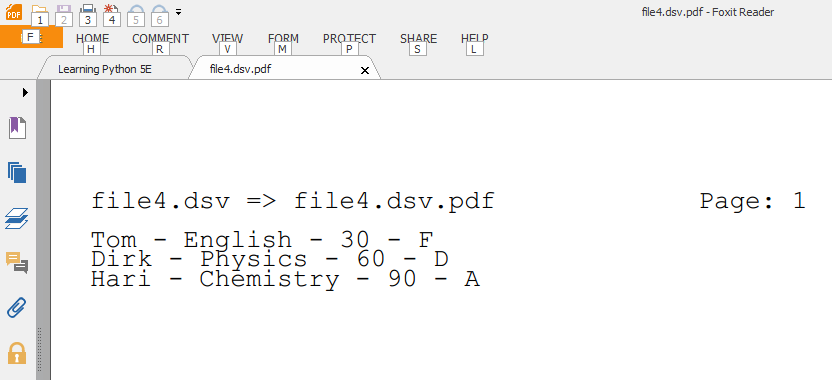
I did a sample run with the data shown in the image at the top of this post, which uses the pipe character (|) as the delimiter between fields (124 is the ASCII code for the pipe character):
$ python DSVToPDF.py -n 124 file4.dsv
And here is a cropped screenshot of the PDF output as viewed in Foxit PDF Reader:

- Enjoy.

- Vasudev Ram - Online Python training and consulting

Get updates on my software products / ebooks / courses.

Jump to posts: Python   DLang   xtopdf

Subscribe to my blog by email

My ActiveState recipes

Managed WordPress Hosting by FlyWheel


Tuesday, December 6, 2016

[xtopdf] Wildcard text files to PDF with xtopdf and glob

By Vasudev Ram


First joker card image attribution

This is another in my series of applications that use xtopdf (source), my Python toolkit for PDF creation from other formats.

[ Here's a good overview of xtopdf, its uses, supported platforms and formats, etc. ]

I called this app WildcardTextToPDFpy.. It lets you specify a wildcard for text files, and then converts each of the text files matching the wildcard (like grades*2016.txt or monthly*sales.txt) [1], into corresponding PDF files - with the same names but with '.pdf' appended.

[1] For example, the wildcard grades*2016.txt could match grades-math-2016.txt and grades-bio-2016.txt (think a school or college), while monthly*sales.txt might match monthly-car-sales.txt and monthly-bike-sales.txt (think a vehicle dealership), so a PDF file will be generated for each text file matching the given wildcard.

The program uses the iglob function from the glob module in Python's standard library, similar to how this recent other post:

Simple directory lister with multiple wildcard arguments

used the glob function. The difference is that glob returns a list, while iglob returns a generator, so it will return the matching filenames lazily, on demand, as shown here:
$ python
>>> g1 = glob.glob('text*.txt')
>>> g1
['text1.txt', 'text2.txt', 'text3.txt']
>>>>>> g2 = glob.iglob('text*.txt')
>>> g2
<generator object iglob at 0x027C2850>
>>> next(g2)
'text1.txt'
>>> for f in g2:
...     print f
...
text2.txt
text3.txt

Here is the code for WildcardTextToPDF.py:
from __future__ import print_function

# WildcardTextToPDF.py
# Convert the text files specified by a filename wildcard,
# like '*.txt' or 'foo*bar*baz.txt', to PDF files.
# Each text file's content goes to a separate PDF file, with the 
# PDF file name being the full text file name (including the 
# '.txt' part), with '.pdf' appended.
# Requires:
# - xtopdf: https://bitbucket.org/vasudevram/xtopdf
# - ReportLab: https://www.reportlab.com/ftp/reportlab-1.21.1.tar.gz
# Author: Vasudev Ram
# Copyright 2016 Vasudev Ram
# Product store: https://gumroad.com/vasudevram
# Web site: https://vasudevram.github.io
# Blog: http://jugad2.blogspot.com

import sys
import os
import glob
from PDFWriter import PDFWriter

def usage(argv):
    sys.stderr.write("Usage: python {} txt_filename_pattern\n".format(argv[0]))
    sys.stderr.write("E.g. python {} foo*.txt\n".format(argv[0]))

def text_to_pdf(txt_filename):
    pw = PDFWriter(txt_filename + '.pdf')
    pw.setFont('Courier', 12)
    pw.setHeader('{} converted to PDF'.format(txt_filename))
    pw.setFooter('PDF conversion by xtopdf: https://google.com/search?q=xtopdf')

    with open(txt_filename) as txt_fil:
        for line in txt_fil:
            pw.writeLine(line.strip('\n'))
        pw.savePage()

def main():
    if len(sys.argv) != 2:
        usage(sys.argv)
        sys.exit(0)

    try:
        for filename in glob.glob(sys.argv[1]):
            print("Converting {} to {}".format(filename, filename + '.pdf'))
            text_to_pdf(filename)
    except Exception as e:
        print("Caught Exception: type: {}, message: {}".format(\
            e.__class__, str(e)))

if __name__ == '__main__':
    main()
And here are the relevant files before and after running the program, with the program's output in between:
$ dir text*.txt/b
text1.txt
text2.txt
text3.txt

$ python WildcardTextToPDF2.py text*.txt
Converting text1.txt to text1.txt.pdf
Converting text2.txt to text2.txt.pdf
Converting text3.txt to text3.txt.pdf

$ dir text?.txt*/od/b
text1.txt
text2.txt
text3.txt
text1.txt.pdf
text2.txt.pdf
text3.txt.pdf
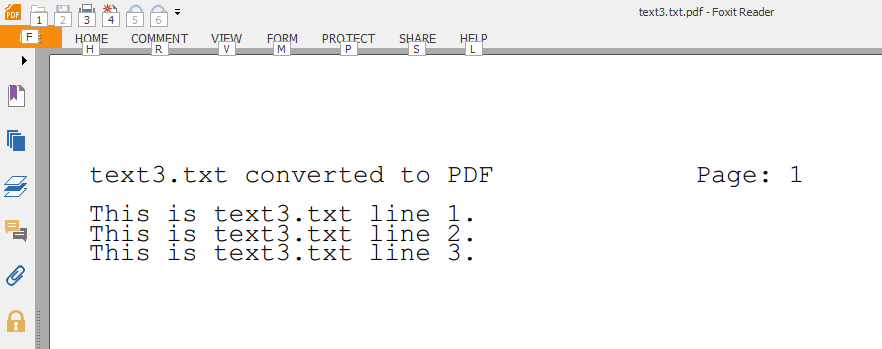
Finally, here's a cropped screenshot of the third output file, text3.txt.pdf, in Foxit PDF Reader (a lightweight PDF reader that I use):


Also look up:

[xtopdf] Batch convert text files to PDF (with xtopdf and fileinput)

for another variation on the approach to converting text files to PDF.

Speaking of generators, also check out this other post about them:

Python generators are pluggable

The image at the top of the post is of the earliest Joker card by Samuel Hart c. 1863, according to Wikipedia:

Joker (playing card)

Enjoy.

- Vasudev Ram - Online Python training and consulting

Get updates on my software products / ebooks / courses.

Jump to posts: Python   DLang   xtopdf

Subscribe to my blog by email

My ActiveState recipes

FlyWheel - Managed WordPress Hosting


Friday, November 25, 2016

Processing DSV data (Delimiter-Separated Values) with Python

By Vasudev Ram


I needed to process some DSV files recently. Here is a Python program I wrote for it, with a few changes over the original. E.g. I do not show the processing of the data here; I only read and print it. Also, I support two different command-line options (and ways) to specify the delimiter character.

DSV (Delimiter-separated values) is a common tabular text data format, with one record per line, and some number of fields per record, where the fields are separated or delimited by some specific character. Some common delimiter characters used in DSV files are tab (which makes them TSV files, Tab-Separated Values, common on Unix), comma (CSV files, Comma-Separated Values, a common spreadsheet and database import-export format), the pipe character (|), the colon (:) and others.

They - DSV files - are described in this section, Data File Metaformats, under Chapter 5: Textuality, of Eric Raymond (ESR)'s book, The Art of Unix Programming, which is a recommended read for anyone interested in Unix (one of the longest-lived operating systems [1]) and in software design and development.

[1] And, speaking a bit loosely, nowaday Unix is also the most widely used OS in the world, by a fair margin, due to its use (as a variant) in Android and iOS based mobile devices, both of which are Unix-based, not to mention Apple MacOS and Linux computers, which also are. Android devices alone number in the billions.

The program, read_dsv.py, is a command-line utility, written in Python, that allows you to specify the delimiter character in one of two ways:

- with a "-c delim_char" option, in which delim_char is an ASCII character,
- with a "-n delim_code" option, in which delim_code is an ASCII code.

It then reads either the files specified as command-line arguments after the -n or -c option, or if no files are given, it reads its standard input.

Here is the code for read_dsv.py:
from __future__ import print_function

"""
read_dsv.py
Author: Vasudev Ram
Web site: https://vasudevram.github.io
Blog: https://jugad2.blogspot.com
Product store: https://gumroad.com/vasudevram
Purpose: Shows how to read DSV data, i.e. 

https://en.wikipedia.org/wiki/Delimiter-separated_values 

from either files or standard input, split the fields of each
line on the delimiter, and process the fields in some way.
The delimiter character is configurable by the user and can
be specified as either a character or its ASCII code.

Reference:
TAOUP (The Art Of Unix Programming): Data File Metaformats:
http://www.catb.org/esr/writings/taoup/html/ch05s02.html
ASCII table: http://www.asciitable.com/
"""

import sys
import string

def err_write(message):
    sys.stderr.write(message)

def error_exit(message):
    err_write(message)
    sys.exit(1)

def usage(argv, verbose=False):
    usage1 = \
        "{}: read and process DSV (Delimiter-Separated-Values) data.\n".format(argv[0])
    usage2 = "Usage: python" + \
        " {} [ -c delim_char | -n delim_code ] [ dsv_file ] ...\n".format(argv[0])
    usage3 = [
        "where one of either the -c or -n option must be given,\n",  
        "delim_char is a single ASCII delimiter character, and\n", 
        "delim_code is a delimiter character's ASCII code.\n", 
        "Text lines will be read from specified DSV file(s) or\n", 
        "from standard input, split on the specified delimiter\n", 
        "specified by either the -c or -n option, processed, and\n", 
        "written to standard output.\n", 
    ]
    err_write(usage1)
    err_write(usage2)
    if verbose:
        for line in usage3:
            err_write(line)

def str_to_int(s):
    try:
        return int(s)
    except ValueError as ve:
        error_exit(repr(ve))

def valid_delimiter(delim_code):
    return not invalid_delimiter(delim_code)

def invalid_delimiter(delim_code):
    # Non-ASCII codes not allowed, i.e. codes outside
    # the range 0 to 255.
    if delim_code < 0 or delim_code > 255:
        return True
    # Also, don't allow some specific ASCII codes;
    # add more, if it turns out they are needed.
    if delim_code in (10, 13):
        return True
    return False

def read_dsv(dsv_fil, delim_char):
    for idx, lin in enumerate(dsv_fil):
        fields = lin.split(delim_char)
        assert len(fields) > 0
        # Knock off the newline at the end of the last field,
        # since it is the line terminator, not part of the field.
        if fields[-1][-1] == '\n':
            fields[-1] = fields[-1][:-1]
        # Treat a blank line as a line with one field,
        # an empty string (that is what split returns).
        print("Line", idx, "fields:")
        for idx2, field in enumerate(fields):
            print(str(idx2) + ":", "|" + field + "|")

def main():
    # Get and check validity of arguments.
    sa = sys.argv
    lsa = len(sa)
    if lsa == 1:
        usage(sa)
        sys.exit(0)
    if lsa == 2:
        # Allow the help option with any letter case.
        if sa[1].lower() in ("-h", "--help"):
            usage(sa, verbose=True)
            sys.exit(0)
        else:
            usage(sa)
            sys.exit(0)

    # If we reach here, lsa is >= 3.
    # Check for valid mandatory options (sic).
    if not sa[1] in ("-c", "-n"):
        usage(sa, verbose=True)
        sys.exit(0)

    # If -c option given ...
    if sa[1] == "-c":
        # If next token is not a single character ...
        if len(sa[2]) != 1:
            error_exit(
            "{}: Error: -c option needs a single character after it.".format(sa[0]))
        if not sa[2] in string.printable:
            error_exit(
            "{}: Error: -c option needs a printable ASCII character after it.".format(\
            sa[0]))
        delim_char = sa[2]
    # else if -n option given ...
    elif sa[1] == "-n":
        delim_code = str_to_int(sa[2])
        if invalid_delimiter(delim_code):
            error_exit(
            "{}: Error: invalid delimiter code {} given for -n option.".format(\
            sa[0], delim_code))
        delim_char = chr(delim_code)
    else:
        # Checking for what should not happen ... a bit of defensive programming here.
        error_exit("{}: Program error: neither -c nor -n option given.".format(sa[0]))

    try:
        # If no filenames given, read sys.stdin ...
        if lsa == 3:
            print("processing sys.stdin")
            dsv_fil = sys.stdin
            read_dsv(dsv_fil, delim_char)
            dsv_fil.close()
        # else (filenames given), read them ...
        else:
            for dsv_filename in sa[3:]:
                print("processing file:", dsv_filename)
                dsv_fil = open(dsv_filename, 'r')
                read_dsv(dsv_fil, delim_char)
                dsv_fil.close()
    except IOError as ioe:
        error_exit("{}: Error: {}".format(sa[0], repr(ioe)))
        
if __name__ == '__main__':
    main()

Here are test runs of the program (both valid and invalid), and the results of each one:

Run it without any arguments. Gives a brief usage message.
$ python read_dsv.py
read_dsv.py: read and process DSV (Delimiter-Separated-Values) data.
Usage: python read_dsv.py [ -c delim_char | -n delim_code ] [ dsv_file ] ...
Run it with a -h option (for help). Gives the verbose usage message.
$ python read_dsv.py -h
read_dsv.py: read and process DSV (Delimiter-Separated-Values) data.
Usage: python read_dsv.py [ -c delim_char | -n delim_code ] [ dsv_file ] ...
where one of either the -c or -n option must be given,
delim_char is a single ASCII delimiter character, and
delim_code is a delimiter character's ASCII code.
Text lines will be read from specified DSV file(s) or
from standard input, split on the specified delimiter
specified by either the -c or -n option, processed, and
written to standard output.
Run it with a -v option (invalid run). Gives the brief usage message.
$ python read_dsv.py -v
read_dsv.py: read and process DSV (Delimiter-Separated-Values) data.
Usage: python read_dsv.py [ -c delim_char | -n delim_code ] [ dsv_file ] ...
Run it with a -c option but no ASCII character argument (invalid run). Gives the brief usage message.
$ python read_dsv.py -c
read_dsv.py: read and process DSV (Delimiter-Separated-Values) data.
Usage: python read_dsv.py [ -c delim_char | -n delim_code ] [ dsv_file ] ...
Run it with a -c option followed by the pipe character (invalid run). The OS (here, Windows) gives an error message because the pipe character cannot be used to end a pipeline.
$ python read_dsv.py -c |
The syntax of the command is incorrect.
Run it with the -c option and the pipe character as the delimiter character, but protected (by double quotes) from interpretation by the OS shell (CMD).
$ python read_dsv.py -c "|" file1.dsv
processing file: file1.dsv
Line 0 fields:
0: |1|
1: |2|
2: |3|
3: |4|
4: |5|
5: |6|
6: |7|
Line 1 fields:
0: |field1|
1: |fld2|
2: | fld3 with spaces around it |
3: |    fld4 with leading spaces|
4: |fld5 with trailing spaces     |
5: |next field is empty|
6: ||
7: |last field|
Line 2 fields:
0: ||
1: |1|
2: |22|
3: |333|
4: |4444|
5: |55555|
6: |666666|
7: |7777777|
8: |88888888|
Line 3 fields:
0: ||
1: ||
2: ||
3: ||
4: ||
5: |                      |
6: ||
7: ||
8: ||
9: ||
10: ||
Run it with the -n option followed by 124, the ASCII code for the pipe character as the delimiter.
$ python read_dsv.py -n 124 file1.dsv
[Gives exact same output as the run above, as it should, because both use the same delimiter and read the same input file.]
Copy file1.dsv to file3.dsv. Change all the pipe characters (delimiters) to colons:
Run it with the -n option followed by 58, the ASCII code for the colon character.
$ python read_dsv.py -n 58 file3.dsv
[Gives exact same output as the run above, as it should, because other than the delimiters (pipe versus colon), the input is the same.]

I added support for the -n option to the program because it makes it more flexible, since you can specify any ASCII character as the delimiter (that makes sense), by giving its ASCII code.

And of course, to find out the values of the ASCII codes for these delimiter characters, I used the char_to_ascii_code.py program from my recent post:

Trapping KeyboardInterrupt and EOFError for program cleanup

You may have noticed that I mentioned delimiter characters and DSV files in that post too. The char_to_ascii_code.py utility shown in that post was created to find the ASCII code for any character (without having to look it up on the web each time).

- Enjoy.

- Vasudev Ram - Online Python training and consulting

- Black Flyday at Flywheel Wordpress Managed Hosting - get 3 months free on the annual plan.

Get updates on my software products / ebooks / courses.

Jump to posts: Python   DLang   xtopdf

Subscribe to my blog by email

My ActiveState recipes


Saturday, November 5, 2016

[xtopdf] Batch convert text files to PDF (with xtopdf and fileinput)

By Vasudev Ram


file1.txt + file2.txt + file3.txt => file123.pdf

I created this new xtopdf app recently. (For those unfamiliar with it, xtopdf (source here) is my open source Python project for PDF generation from other formats and sources. Here is a good high-level overview of xtopdf, describing what it is and can do, its supported input formats, platforms (Windows, Linux, Mac OS X, Unix) and environments (CLI, GUI, Web), etc. The core of the xtopdf project is a library, and what I call xtopdf apps, are applications built using that library.)

This particular app lets you batch-convert multiple text files at a time, to a PDF file. The content of each text file starts on a new page in the PDF file. The program uses xtopdf (which uses ReportLab) and the fileinput module from Python's standard library. The program could be written without using the fileinput module too, and I've done a variant of it that way earlier, but I used fileinput this time for convenience, and to show a use of it.

(BTW, fileinput is a pretty useful module in its own right, for this sort of work - applying the same process (any process, not just PDF generation) to a bunch of input files. fileinput can also read from standard input if no input filenames are specified, but I don't use that feature here. Also, I used 4 functions from the fileinput module, on 4 consecutive lines, in this short program :) - not just for the sake of it, though; it made sense to do so.)

Here is the code, in file BatchTextToPDF.py:
from __future__ import print_function

# BatchTextToPDF.py
# Convert a batch of text files to a single PDF.
# Each text file's content starts on a new page in the PDF file.
# Requires:
# - xtopdf: https://bitbucket.org/vasudevram/xtopdf
# - ReportLab: https://www.reportlab.com/ftp/reportlab-1.21.1.tar.gz
# Author: Vasudev Ram
# Copyright 2016 Vasudev Ram
# Product store: https://gumroad.com/vasudevram
# Web site: https://vasudevram.github.io
# Blog: http://jugad2.blogspot.com

import sys
import fileinput
from PDFWriter import PDFWriter

def usage(prog_name):
    sys.stderr.write("Usage: {} outfile.pdf infile1.txt ...".format(prog_name))

def main():

    if len(sys.argv) < 3:
        usage(sys.argv[0])
        sys.exit(0)

    try:
        pw = PDFWriter(sys.argv[1])
        pw.setFont('Courier', 12)
        pw.setFooter('xtopdf: https://google.com/search?q=xtopdf')

        for line in fileinput.input(sys.argv[2:]):
            if fileinput.filelineno() == 1:
                pw.setHeader(fileinput.filename())
                if fileinput.lineno() != 1:
                    pw.savePage()
            pw.writeLine(line.strip('\n'))

        pw.savePage()
        pw.close()
    except Exception as e:
        print("Caught Exception: type: {}, message: {}".format(\
            e.__class__, str(e)))

if __name__ == '__main__':
    main()
Here is a sample run of the program. I created 3 text files, text1.txt through text3.txt, with the respective number of lines in them. Then ran the command:
python BTTP123.pdf text1.txt text2.txt text3.txt
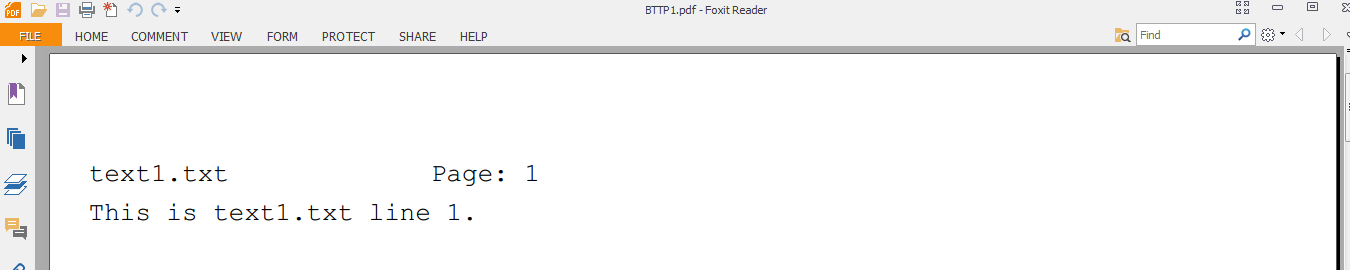
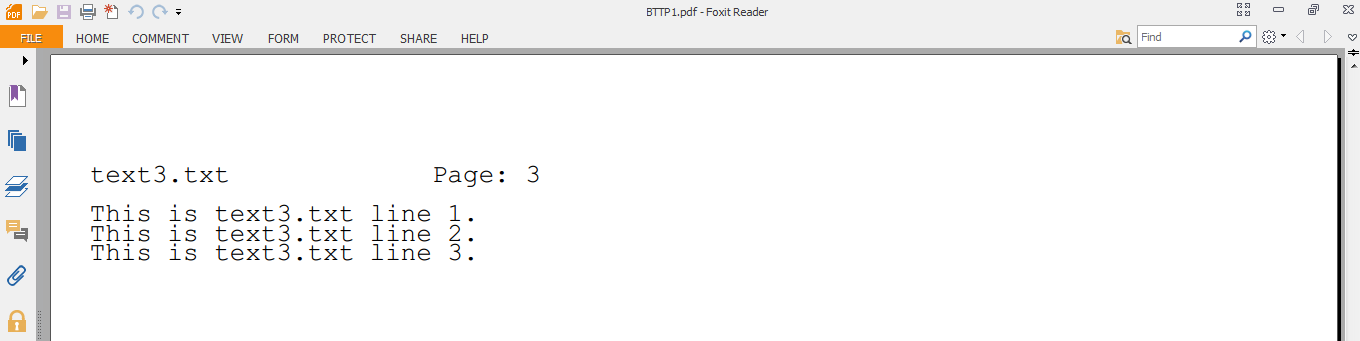
This created the PDF file BTTP123.pdf. Cropped screenshots of the 1st and 3rd (last) page of the PDF are below:

1st page:


3rd page:


In this example I've closed the PDFWriter instance manually, using pw.close(), but PDFWriter can also be used with the Python with statement, since I had added context manager support to PDFWriter earlier. I use the with statement in some of my xtopdf app examples, and not in others, to show that both possibilities exist.

Here is a Guide to installing and using xtopdf, including creating simple PDF e-books with it.

- Enjoy.

- Vasudev Ram - Online Python training and consulting

Get updates on my software products / ebooks / courses.

Jump to posts: Python   DLang   xtopdf

Subscribe to my blog by email

My ActiveState recipes

FlyWheel - Managed WordPress Hosting


Wednesday, October 26, 2016

Read from CSV with D, write to PDF with Python

By Vasudev Ram


CSV => PDF

Here is another in my series of applications of xtopdf, my PDF creation toolkit for Python (xtopdf source here).

This xtopdf application is actually a pipeline (nothing Unix-specific though, will work on both *nix and Windows) - a D program reading CSV data and sending it to a Python program, which writes the data to PDF.

The D program, read_csv.d, reads CSV data from a .csv file, and writes it to standard output.

The Python program, StdinToPDF.py (which is part of the xtopdf toolkit), reads its standard input (which is redirected by the pipeline to come from the D program's standard output) and writes the data it reads, to PDF.

Here is the D program, read_csv.d:
/**************************************************
File: read_csv.d
Purpose: A program to read CSV data from a file and 
write it to standard output.
Author: Vasudev Ram
Date created: 2016-10-25
Copyright 2016 Vasudev Ram
Web site: https://vasudevram.github.io
Blog: http://jugad2.blogspot.com
Product store: https://gumroad.com/vasudevram
**************************************************/

import std.algorithm;
import std.array;
import std.csv;
import std.stdio;
import std.file;
import std.typecons;

int main()
{
    try {
        stderr.writeln("Reading CSV data from file.");
        auto file = File("input.csv", "r");
        foreach (record;
            file.byLine.joiner("\n").csvReader!(Tuple!(string, string, int)))
        {
            writefln("%s works as a %s and earns $%d per year",
                     record[0], record[1], record[2]);
        }
    } catch (CSVException csve) {
        stderr.writeln("Caught CSVException: msg = ", csve.msg, 
        " at row, col = ", csve.row, ", ", csve.col);
    } catch (FileException fe) {
        stderr.writeln("Caught FileException: msg = ", fe.msg);
    } catch (Exception e) {
        stderr.writeln("Caught Exception: msg = ", e.msg);
    }
    return 0;
}
The D program is compiled as usual with:
dmd read_csv.d
I ran it first (only the D program) with an invalid CSV file (it has an extra comma at the start on line 3, which invalidates the data by making "Driver" be in the salary column position), and got the expected error message, which includes the row and column number of the place in the CSV file where the program encountered the error - this is useful for fixing the input data:
$ type input.csv
Jack,Carpenter,40000
Tom,Blacksmith,50000
,Jill,Driver,60000
$ read_csv
Reading CSV data from file.
Jack works as a Carpenter and earns $40000 per year
Tom works as a Blacksmith and earns $50000 per year
Caught CSVException: msg = Unexpected 'D' when converting from type string to type int 
at row, col = 3, 3
Then I ran it again, in the regular way, this time with a valid CSV file, and as part of a pipeline, the other pipeline component being StdinToPDF:
$ read_csv | python StdinToPDF.py csv_output.pdf
Reading CSV data from file.
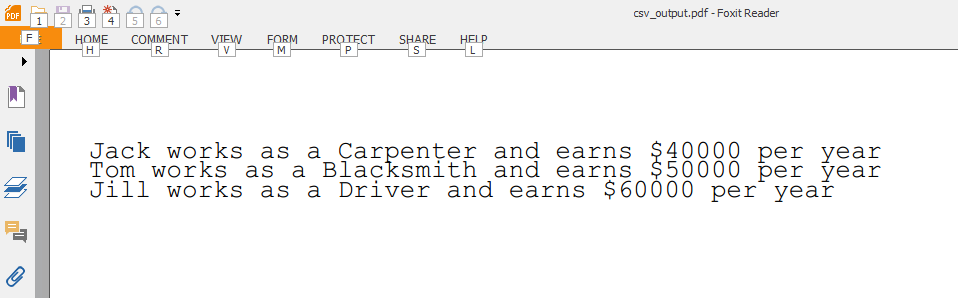
And here is a cropped view of the output as seen in Foxit PDF Reader:


- Enjoy.

- Vasudev Ram - Online Python training and consulting

Get updates on my software products / ebooks / courses.

Jump to posts: Python   DLang   xtopdf

Subscribe to my blog by email

My ActiveState recipes

FlyWheel - Managed WordPress Hosting


Monday, November 23, 2015

Convert XLSX to PDF with Python and xtopdf

By Vasudev Ram


XLSX => PDF

This is a simple application of my xtopdf toolkit, showing how to use it to convert XLSX data, i.e. Microsoft Excel data, to PDF (Portable Document Format). It only converts text data, not the formatting, colors, fonts, etc., that may be present in the Excel file.

For the input, I will use this small Excel file, fruits2.xlsx, which I created. A screenshot of it is below (click to enlarge):


Here is the code for XLSXtoPDF.py:
# XLSXtoPDF.py

# Program to convert the data from an XLSX file to PDF.
# Uses the openpyxl library and xtopdf.

# Author: Vasudev Ram - http://jugad2.blogspot.com
# Copyright 2015 Vasudev Ram.

from openpyxl import load_workbook
from PDFWriter import PDFWriter

workbook = load_workbook('fruits2.xlsx', guess_types=True, data_only=True)
worksheet = workbook.active

pw = PDFWriter('fruits2.pdf')
pw.setFont('Courier', 12)
pw.setHeader('XLSXtoPDF.py - convert XLSX data to PDF')
pw.setFooter('Generated using openpyxl and xtopdf')

ws_range = worksheet.iter_rows('A1:H13')
for row in ws_range:
    s = ''
    for cell in row:
        if cell.value is None:
            s += ' ' * 11
        else:
            s += str(cell.value).rjust(10) + ' '
    pw.writeLine(s)
pw.savePage()
pw.close()
And here is a screenshot of the PDF output in fruits2.pdf:

There are some points worth mentioning in connection with conversion of data to and from PDF. I will discuss them in a follow-up post.

- Vasudev Ram - Online Python training and programming

Signup to hear about new products and services I create.

Posts about Python  Posts about xtopdf

My ActiveState recipes

Saturday, March 7, 2015

PDFCrowd and its HTML to PDF API (for Python and other languages)

By Vasudev Ram


PDFcrowd is a web service that I came across recently. It allows users to convert HTML content to PDF. This can be done both via the PDFcrowd site - by entering either the content or the URL of an HTML page to be converted to PDF - or via the PDFcrowd API, which has support for multiple programming languages, including for Python. I tried multiple approaches, and all worked fairly well.

A slightly modified version of a simple PDFcrowd API example from their site, is shown below.

# Demo program to show how to use the PDFcrowd API
# to convert HTML content to PDF.
# Author: Vasudev Ram - www.dancingbison.com

import pdfcrowd

try:
    # create an API client instance
    # Dummy credentials used; to actually run the program, enter your own.
    client = pdfcrowd.Client("user_name", "api_key")
    client.setAuthor('author_name')
    # Dummy credentials used; to actually run the program, enter your own.
    client.setUserPassword('user_password')

    # Convert a web page and store the generated PDF in a file.
    pdf = client.convertURI('http://www.dancingbison.com')
    with open('dancingbison.pdf', 'wb') as output_file:
        output_file.write(pdf)
    
    # Convert a web page and store the generated PDF in a file.
    pdf = client.convertURI('http://jugad2.blogspot.in/p/about-vasudev-ram.html')
    with open('jugad2-about-vasudevram.pdf', 'wb') as output_file:
        output_file.write(pdf)

    # convert an HTML string and save the result to a file
    output_file = open('html.pdf', 'wb')
    html = "My Small HTML File"
    client.convertHtml(html, output_file)
    output_file.close()

except pdfcrowd.Error, why:
    print 'Failed:', why
I used three calls to the API. For the first two calls, the inputs were: 1) my web site, 2) the about page of my blog.

Screenshots of the results of those two calls are below. You can see that they correspond closely to the originals.

Screenshot of generated PDF of dancingbison.com site


Screenshot of generated PDF of About Vasudev Ram page on jugad2.blogspot.com blog


- Vasudev Ram - Online Python training and programming

Dancing Bison Enterprises

Signup to hear about new Python or PDF related products created by me.

Posts about Python  Posts about xtopdf

Contact Page

Wednesday, January 28, 2015

HTML text to PDF with Beautiful Soup and xtopdf

By Vasudev Ram


Recently, I thought of getting the text from HTML documents and putting that text to PDF. So I did it :)

Here's how:

"""
HTMLTextToPDF.py
A demo program to show how to convert the text extracted from HTML 
content, to PDF. It uses the Beautiful Soup library, v4, to 
parse the HTML, and the xtopdf library to generate the PDF output.
Beautiful Soup is at: http://www.crummy.com/software/BeautifulSoup/
xtopdf is at: https://bitbucket.org/vasudevram/xtopdf
Guide to using and installing xtopdf: http://jugad2.blogspot.in/2012/07/guide-to-installing-and-using-xtopdf.html
Author: Vasudev Ram - http://www.dancingbison.com
Copyright 2015 Vasudev Ram
"""

import sys
from bs4 import BeautifulSoup
from PDFWriter import PDFWriter

def usage():
    sys.stderr.write("Usage: python " + sys.argv[0] + " html_file pdf_file\n")
    sys.stderr.write("which will extract only the text from html_file and\n")
    sys.stderr.write("write it to pdf_file\n")

def main():

    # Create some HTML for testing conversion of its text to PDF.
    html_doc = """
    <html>
        <head>
            <title>
            Test file for HTMLTextToPDF
            </title>
        </head>
        <body>
        This is text within the body element but outside any paragraph.
        <p>
        This is a paragraph of text. Hey there, how do you do?
        The quick red fox jumped over the slow blue cow.
        </p>
        <p>
        This is another paragraph of text.
        Don't mind what it contains.
        What is mind? Not matter.
        What is matter? Never mind.
        </p>
        This is also text within the body element but not within any paragraph.
        </body>
    </html>
    """

    pw = PDFWriter("HTMLTextTo.pdf")
    pw.setFont("Courier", 10)
    pw.setHeader("Conversion of HTML text to PDF")
    pw.setFooter("Generated by xtopdf: http://slid.es/vasudevram/xtopdf")
 
    # Use method chaining this time.
    for line in BeautifulSoup(html_doc).get_text().split("\n"):
        pw.writeLine(line)
    pw.savePage()
    pw.close()

if __name__ == '__main__':
    main()


The program uses the Beautiful Soup library for parsing and extracting information from HTML, and xtopdf, my Python library for PDF generation.
Run it with:
python HTMLTextToPDF.py
and the output will be in the file HTMLTextTo.pdf.
Screenshot below:


- Vasudev Ram - Python training and programming - Dancing Bison Enterprises

Read more of my posts about Python or read posts about xtopdf (latter is subset of former)


Signup to hear about my new software products or services.


Contact Page

Friday, January 9, 2015

Convert TSV (Tab Separated Values) to PDF with xtopdf

By Vasudev Ram


I wrote this program, TSVToPDF.py, as a demo of how to convert TSV data to PDF, using my xtopdf toolkit.

TSV, which stands for Tab Separated Values, is a common data format. From the Wikipedia article linked in the previous sentence:

"TSV is a simple file format that is widely supported, so it is often used to move tabular data between different computer programs that support the format. For example, a TSV file might be used to transfer information from a database program to a spreadsheet.

TSV is an alternative to the common comma-separated values (CSV) format, which often causes difficulties because of the need to escape commas – literal commas are very common in text data, but literal tab stops are infrequent in running text. The IANA standard for TSV achieves simplicity by simply disallowing tabs within fields."

TSVToPDF.py uses the TSVReader module, for reading TSV data, and uses the PDFWriter module, for writing the PDF output. Both TSVReader.py and PDFWriter.py are part of my xtopdf toolkit for PDF creation in Python.

Here is TSVToPDF.py:

"""
TSVToPDF.py
A demo program to show how to convert TSV data to PDF, 
where TSV stands for Tab Separated Values, a data format commonly 
used on Unix and other operating systems.
Author: Vasudev Ram - http://www.dancingbison.com
Copyright 2015 Vasudev Ram
"""

import sys
from TSVReader import TSVReader
from PDFWriter import PDFWriter

def usage():
    sys.stderr.write("Usage: python " + sys.argv[0] + " tsv_file pdf_file\n")

def main():
    # check for right # of args
    if (len(sys.argv) != 3):
        usage()
        sys.exit(1)

    # extract tsv and pdf filenames from args -
    # using Python's parallel assignment
    tsv_fn, pdf_fn = sys.argv[1:3]

    # create and open the TSVReader instance
    tr = TSVReader(tsv_fn)
    tr.open()

    # create the PDFWriter instance
    # and set some of its fields:
    pw = PDFWriter(pdf_fn)
    pw.setFont("Courier", 10)
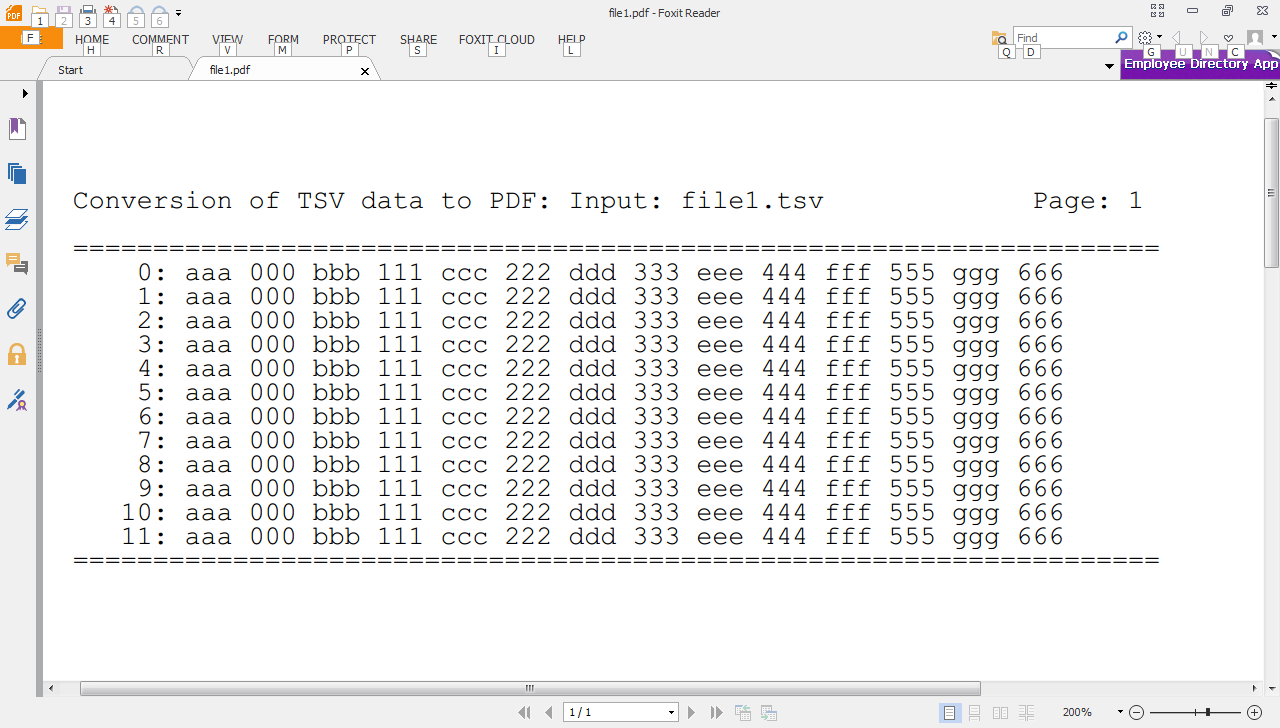
    pw.setHeader("Conversion of TSV data to PDF: Input: " + tsv_fn)
    pw.setFooter("Generated by xtopdf: http://slid.es/vasudevram/xtopdf")

    sep = '=' * 68
    pw.writeLine(sep)

    # print the TSV data to PDF
    rec_num = 0
    try:
        while True:
            row = tr.next_row()
            s = ""
            for col in row:
                s = s + col + " "
            pw.writeLine(str(rec_num).rjust(5) + ": " + s)
            rec_num += 1
    except StopIteration:
        pass

    pw.writeLine(sep)
    tr.close()
    pw.savePage()

if __name__ == '__main__':
    main()

# EOF

I ran the demo program like this:
python TSVtoPDF.py file1.tsv file1.pdf
where file1.tsv was a TSV file that I created for the purpose of testing.

And here is a screenshot of the output PDF file, in Foxit PDF Reader:


- Vasudev Ram - Dancing Bison Enterprises

Signup to hear about new products or services from me.

Contact Page

Thursday, January 23, 2014

Publish Berkeley DB data to PDF with xtopdf

By Vasudev Ram


Berkeley DB (sometimes called BDB or BSD DB) is an embedded (*) key-value database with a long history and a huge user base. It is quite fast and supports very large data sizes. Berkeley DB was developed by Sleepycat Software which was acquired by Oracle some years ago.

(*) "embedded", in the sense of, not client-server, it is a database library that gets linked with your application; not "embedded" in the sense of software embedded in hardware devices, although Berkeley DB can also be embedded in the second sense, since it is small in size.

Excerpt from the Wikipedia article about Berkeley DB linked above:

[ Berkeley DB (BDB) is a software library that provides a high-performance embedded database for key/value data. Berkeley DB is written in C with API bindings for C++, C#, PHP, Java, Perl, Python, Ruby, Tcl, Smalltalk, and many other programming languages. BDB stores arbitrary key/data pairs as byte arrays, and supports multiple data items for a single key. Berkeley DB is not a relational database.[1]
BDB can support thousands of simultaneous threads of control or concurrent processes manipulating databases as large as 256 terabytes,[2] on a wide variety of operating systems including most Unix-like and Windows systems, and real-time operating systems. ]

[ Incidentally, Mike Olson, the former CEO of Sleepycat Software, is now the Chief Strategy Officer of Cloudera, which I blogged about here today:

Cloudera's Impala engine - SQL querying of Hadoop data. ]


I've used Berkeley DB off and on, from before Sleepycat Software was acquired by Oracle, and including via at least C, Python and Ruby.

Today I thought of writing a program that enables a user to publish the data in a Berkeley DB database to PDF, using my xtopdf toolkit for PDF creation. Here is the program, BSDDBToPDF.py:

# BSDDBToPDF.py

# Program to convert Berkeley DB (BSD DB) data to PDF.
# Uses Python's bsdd library (deprecated in Python 3),
# and xtopdf.
# Author: Vasudev Ram - http://www.dancingbison.com

import sys
import bsddb
from PDFWriter import PDFWriter

try:
    # Flag 'c' opens the DB read/write and doesn't delete it if it exists.
    fruits_db = bsddb.btopen('fruits.db', 'c')
    fruits = [
            ('apple', 'The apple is a red fruit.'),
            ('banana', 'The banana is a yellow fruit.'),
            ('cherry', 'The cherry is a red fruit.'),
            ('durian', 'The durian is a yellow fruit.')
            ]
    # Add the key/value fruit records to the DB.
    for fruit in fruits:
        fruits_db[fruit[0]] = fruit[1]
    fruits_db.close()

    # Read the key/value fruit records from the DB and write them to PDF.
    with PDFWriter("fruits.pdf") as pw:
        pw.setFont("Courier", 12)
        pw.setHeader("BSDDBToPDF demo: fruits.db to fruits.pdf")
        pw.setFooter("Generated by xtopdf")
        fruits_db = bsddb.btopen('fruits.db', 'c')
        print "FRUITS"
        print
        pw.writeLine("FRUITS")
        pw.writeLine(" ")
        for key in fruits_db.keys():
            print key
            print fruits_db[key]
            print
            pw.writeLine(key)
            pw.writeLine(fruits_db[key])
            pw.writeLine(" ")
        fruits_db.close()

except Exception, e:
    sys.stderr.write("ERROR: Caught exception: " + repr(e) + "\n")
    sys.exit(1)


And here is a screenshot of the PDF output of the program:


- Vasudev Ram - Dancing Bison Enterprises


O'Reilly 50% Ebook Deal of the Day


Contact Page

Friday, November 22, 2013

Errata for recent post ""Publish Microsoft Excel XLSX data to HTML with openpyxl"


By Vasudev Ram

Dear readers, while publishing my recent post,

Publish Microsoft Excel XLSX data to HTML with openpyxl, there were some errors in the HTML markup in the code listing, that had to do with missing or wrongly typed HTML entities, HTML elements, or quotes.

My apologies for the inconvenience caused.

I've now posted the corrected code below:

# XLSXtoHTML.py

# Program to convert the data from an XLSX file to HTML.
# Uses the openpyxl library.

# Author: Vasudev Ram - http://www.dancingbison.com

import openpyxl
from openpyxl import load_workbook

workbook = load_workbook('fruits.xlsx')
worksheet = workbook.get_active_sheet()

html_data = """
<html>
    <head>
        <title>
        XLSX to HTML demo
        </title>
    </head>
    <body>
        <h3>
        XLSX to HTML demo
        </h3>
        <table>
"""

ws_range = worksheet.range('A1:H13')
for row in ws_range:
    html_data += "<tr>"
    for cell in row:
        if cell.value is None:
            html_data += "<td>" + ' ' + "</td>"
        else:
            html_data += "<td>" + str(cell.value) + "</td>"
    html_data += "</tr>"
html_data += "</table></body></html>"

with open("fruits.html", "w") as html_fil:
    html_fil.write(html_data)

# EOF


- Vasudev Ram - Dancing Bison Enterprises


Thursday, November 21, 2013

Publish Microsoft Excel XLSX data to HTML with openpyxl


By Vasudev Ram

I had come across openpyxl, a library by Eric Gazoni, for reading and writing Microsoft Excel XLSX files (Open Office XML), a while ago.

So today I wrote a demo program that reads the data from an XLSX file using openpyxl and writes that data to HTML as a table. Here is a screenshot of the sample XLSX file used, fruits.xlsx (click image to enlarge):


Here is the program, XLSXtoHTMLdemo.py:
# XLSXtoHTMLdemo.py

# Program to convert the data from an XLSX file to HTML.
# Uses the openpyxl library.

# Author: Vasudev Ram - http://www.dancingbison.com

import openpyxl
from openpyxl import load_workbook

workbook = load_workbook('fruits.xlsx')
worksheet = workbook.get_active_sheet()

html_data = """
<html>
    <head>
        <title>
        XLSX to HTML demo
        <title>
    <head>
    <body>
        <h3>
        XLSX to HTML demo
        <h3>
    <table>
"""

ws_range = worksheet.range('A1:H13')
for row in ws_range:
    html_data += "<tr>
    for cell in row:
        if cell.value is None:
            html_data += "<td> + ' ' + "<td>
        else:
            html_data += "<td> + str(cell.value) + "<td>
    html_data += "<tr>
html_data += "<table>lt;body>lt;html>

with open("fruits.html", "w") as html_fil:
    html_fil.write(html_data)

# EOF

You can run the program with:
python XLSXtoHTMLdemo.py
Then the program's HTML output will be in the file fruits.html, a screenshot of which is below (click to enlarge):


- Enjoy.

- Vasudev Ram - Python, C, Linux, databases, open source - training and consulting.

Read all Python posts on my blog.


O'Reilly 50% Ebook Deal of the Day

Friday, October 18, 2013

xtopdf - an online presentation


By Vasudev Ram

(Updated the post with more links and a few edits; apologies to readers seeing it twice as a result, via feed readers.)

While doing some minor work on my PDF creation toolkit, xtopdf (which is written in Python), I realized that there was no central place where all or most of its features and uses were described, although I have written various articles about xtopdf on this blog and elsewhere on the Internet. I also realized that over a period of time, I have been adding various features or improvements to xtopdf, which some users may not be aware of.

And coincidentally, while browsing the site of a Python Quant, Dr. Yves J. Hilpisch, I saw a presentation there, done using Reveal.js, by Hakim El Hattab. Reveal.js looks very good, BTW. It is a JavaScript tool for creating online presentations. It can be used by creating your slides manually in HTML/JavaScript/CSS, or via an online tool:

There is a companion site, slid.es, where you can create a presentation using Reveal.js. The slid.es site has both free and paid accounts.

So I created a presentation about xtopdf on the slid.es site.

You can view it either here: slid.es/vasudevram/xtopdf, or embedded below:


I hope the xtopdf presentation helps readers and users to get to know xtopdf better, and use it to the fullest. Note: the presentation has hyperlinks; make sure to (right-)click on them to see all the information about xtopdf.

- Vasudev Ram - Dancing Bison Enterprises

Make a Python training or consulting inquiry

Wednesday, October 2, 2013

Convert Microsoft Word files to PDF with DOCXtoPDF


By Vasudev Ram


DOCX to PDF

Building upon my recent post, here:

Extract text from Word .docx files with python-docx,

I came up with the idea of combining that DOCX text extraction functionality of python-docx with my xtopdf toolkit, to create a program that can convert the text in Microsoft Word DOCX files to PDF format.

[ Note: The conversion has some limitations. E.g. fonts, tables, etc. from the input are not preserved in the output. ]

Here is the program, called DOCXtoPDF.py. It will become a part of my xtopdf toolkit.

# DOCXtoPDF.py

# Author: Vasudev Ram - http://www.dancingbison.com
# Copyright 2012 Vasudev Ram, http://www.dancingbison.com

# This is open source code, released under the New BSD License -
# see http://www.opensource.org/licenses/bsd-license.php .

import sys
import os
import os.path
import string
from textwrap import TextWrapper
from docx import opendocx, getdocumenttext
from PDFWriter import PDFWriter

def docx_to_pdf(infilename, outfilename):

    # Extract the text from the DOCX file object infile and write it to 
    # a PDF file.

    try:
        infil = opendocx(infilename)
    except Exception, e:
        print "Error opening infilename"
        print "Exception: " + repr(e) + "\n"
        sys.exit(1)

    paragraphs = getdocumenttext(infil)

    pw = PDFWriter(outfilename)
    pw.setFont("Courier", 12)
    pw.setHeader("DOCXtoPDF - convert text in DOCX file to PDF")
    pw.setFooter("Generated by xtopdf and python-docx")
    wrapper = TextWrapper(width=70, drop_whitespace=False)

    # For Unicode handling.
    new_paragraphs = []
    for paragraph in paragraphs:
        new_paragraphs.append(paragraph.encode("utf-8"))

    for paragraph in new_paragraphs:
        lines = wrapper.wrap(paragraph)
        for line in lines:
            pw.writeLine(line)
        pw.writeLine("")

    pw.savePage()
    pw.close()
    
def usage():

    return "Usage: python DOCXtoPDF.py infile.docx outfile.txt\n"

def main():

    try:
        # Check for correct number of command-line arguments.
        if len(sys.argv) != 3:
            print "Wrong number of arguments"
            print usage()
            sys.exit(1)
        infilename = sys.argv[1]
        outfilename = sys.argv[2]

        # Check for right infilename extension.
        infile_ext = os.path.splitext(infilename)[1]
        if infile_ext.upper() != ".DOCX":
            print "Input filename extension should be .DOCX"
            print usage()
            sys.exit(1)

        # Check for right outfilename extension.
        outfile_ext = os.path.splitext(outfilename)[1]
        if outfile_ext.upper() != ".PDF":
            print "Output filename extension should be .PDF"
            print usage()
            sys.exit(1)

        docx_to_pdf(infilename, outfilename)

    except Exception, e:
        sys.stderr.write("Error: " + repr(e) + "\n")
        sys.exit(1)

if __name__ == '__main__':
    main()

# EOF


To run DOCXtoPDF, give a command of the form:

python DOCXtoPDF.py infilename.docx outfilename.pdf

After this, the text content of the DOCX file will be in the PDF file.

- Enjoy.


Read other posts about xtopdf on this blog.
Read other posts about Python on this blog.

- Vasudev Ram - Dancing Bison Enterprises

Training or consulting inquiry


O'Reilly 50% Ebook Deal of the Day


Friday, September 27, 2013

Extract text from Word .docx files with python-docx


By Vasudev Ram


python-docx is a Python library that can be used to extract the text content from Microsoft Word files that are in the .docx format.

Here is a program (modified a bit from the python-docx examples) that shows how to do it:

# extract_docx_text.py

import sys
from docx import opendocx, getdocumenttext

def extract_docx_text(infil, outfil):

    # Extract the text from the DOCX file object infile and write it to 
    # the text file object outfil.

    paragraphs = getdocumenttext(infil)

    # For Unicode handling.
    new_paragraphs = []
    for paragraph in paragraphs:
        new_paragraphs.append(paragraph.encode("utf-8"))

    outfil.write('\n'.join(new_paragraphs))

def usage():

    return "Usage: python extract_docx_text.py infile.docx outfile.txt\n"

def main():

    if len(sys.argv) != 3:
        print usage()
        sys.exit(1)

    try:
        infil = opendocx(sys.argv[1])
        outfil = open(sys.argv[2], 'w')
    except Exception, e:
        print "Exception: " + repr(e) + "\n"
        sys.exit(1)

    extract_docx_text(infil, outfil)

if __name__ == '__main__':
    main()

# EOF

Save the program as extract_docx_text.py and run it with:

python extract_docx_text.py input_file.docx output_file.txt

That should result in the text of the .docx file being extracted and written to the .txt file.

- Vasudev Ram - Dancing Bison Enterprises

Make a training or consulting inquiry (Python, open source, Linux ...)

Monday, October 15, 2012

Converting PDF to EPUB ...

By Vasudev Ram


Had a need recently to convert a PDF file to EPUB format to read it on my Android mobile (because I tend not to like heavyweight software such as that from Adobe, particularly for mobile, and I have FBReader on my mobile).

So googled for "PDF to EPUB" and found a few links:

http://www.2epub.com/

http://lifehacker.com/5509965/how-can-i-convert-pdfs-and-other-ebooks-to-the-epub-format

http://ebook.online-convert.com/convert-to-epub

Checking out some of those methods.

- Vasudev Ram - Dancing Bison Enterprises


Thursday, September 27, 2012

Docverter HTTP API converts marked-up docs to PDF, Docx, RTF or ePub


Docverter, an HTTP API to convert marked-up docs to PDF, Docx, RTF or ePub (and other formats, both input and output).

Docverter is a paid service.

It uses pandoc, the swiss-army-knife format conversion tool (open source), which I've blogged about a couple of times before.

UPDATE: The Docverter service is not available yet - it is in closed beta. When you try to sign up, you see a form to enter your email address so they can inform you when it is open to use. They are using the model of gauging user interest and getting email addresses of people interested, as some other startups are doing nowadays. But in this case, the creator says that he already has some working code, just that it needs some improvement before letting users in. Interesting thread about it on Hacker News, where the creator, HN user zrail, also participates, answering questions about the service, including why it is a paid service when pandoc is free.

Inspired by nature.
- dancingbison.com | @vasudevram | jugad2.blogspot.com

Saturday, September 22, 2012

How to create an ebook with Pandoc, the swiss-army-knife conversion tool

By Vasudev Ram


Pandoc is a tool that lets you convert many document formats to many other document formats.

I had blogged or tweeted about Pandoc some time ago, but saw this feature only today:

Pandoc can be used to easily create EPUB format ebooks.

I was interested to see that the process of creating an EPUB ebook using Pandoc is similar (in one respect only, that is one book chapter per file or directory *) to the process of creating PDF ebooks with xtopdf, my PDF creation toolkit.

Of course, the Pandoc method supports many more features (including markup, metadata, etc.) than xtopdf does. But xtopdf is very easy if you just want a simple set of text chapters converted to a single PDF ebook.

* One chapter per file for xtopdf, one chapter per directory for Pandoc.

- Vasudev Ram - Dancing Bison Enterprises


Monday, September 17, 2012

Pdf2htmlEX, an open source PDF to HTML converter


Pdf2htmlEX, a PDF to HTML converter

Though it has a focus on converting PDFs with mathematical content, it works for regular PDFs too, says the site.

HN thread about pdf2htmlEx has many comments, some interesting.

Inspired by nature.
- dancingbison.com | @vasudevram | jugad2.blogspot.com