Showing posts with label CSV. Show all posts

Saturday, December 17, 2016

[xtopdf] Publish DSV data (Delimiter-Separated Values) to PDF

By Vasudev Ram


Here is another in my series of posts about xtopdf, my Python toolkit for PDF creation from other data/file formats. This one is for conversion of DSV data to PDF.

DSV stands for Delimiter-Separated Values, and is a superset or generalization of formats like CSV (Comma-Separated Values) and TSV (Tab-Separated Values). These formats are commonly used in general computing (business, scientific, etc.) and also in data science.

This program, DSVToPDF.py, builds upon the code in the read_dsv.py program in this recent post:

Processing DSV data (Delimiter-Separated Values) with Python

It reads DSV content either from filenames given as command-line arguments, or from standard input, and converts each such input into a PDF file with the same name as the DSV file, but with added extension ".pdf". In the case of standard input, since there is no DSV filename to use as the base, the PDF file is named dsv_output.pdf.

Here is the code for DSVToPDF.py:
from __future__ import print_function

"""
DSVToPDF.py
Author: Vasudev Ram
Web site: https://vasudevram.github.io
Blog: https://jugad2.blogspot.com
Product store: https://gumroad.com/vasudevram
Twitter: https://mobile.twitter.com/vasudevram
Purpose: Show how to publish DSV data (Delimiter-Separated Values) 
to PDF, using the xtopdf toolkit.
Requires:
 - ReportLab: https://www.reportlab.com/ftp/reportlab-1.21.1.tar.gz
 - xtopdf: https://bitbucket.org/vasudevram/xtopdf
First install ReportLab, then install xtopdf, using instructions here:
http://jugad2.blogspot.in/2012/07/guide-to-installing-and-using-xtopdf.html
The DSV data can be read from either files or standard input.
The delimiter character is configurable by the user and can
be specified as either a character or its ASCII code.
References:
DSV format: https://en.wikipedia.org/wiki/Delimiter-separated_values 
TAOUP (The Art Of Unix Programming): Data File Metaformats:
http://www.catb.org/esr/writings/taoup/html/ch05s02.html
ASCII table: http://www.asciitable.com/
"""

import sys
import string
from PDFWriter import PDFWriter

def err_write(message):
    sys.stderr.write(message)

def error_exit(message):
    err_write(message)
    sys.exit(1)

def usage(argv, verbose=False):
    usage1 = \
        "{}: publish DSV (Delimiter-Separated-Values) data to PDF.\n".format(argv[0])
    usage2 = "Usage: python" + \
        " {} [ -c delim_char | -n delim_code ] [ dsv_file ] ...\n".format(argv[0])
    usage3 = [
        "where one of either the -c or -n option must be given,\n",  
        "delim_char is a single ASCII delimiter character, and\n", 
        "delim_code is a delimiter character's ASCII code.\n", 
        "Text lines will be read from specified DSV file(s) or\n", 
        "from standard input, split on the specified delimiter\n", 
        "specified by either the -c or -n option, processed, and\n", 
        "written, formatted, to PDF files with the name dsv_file.pdf.\n", 
    ]
    usage4 = "Use the -h or --help option for a more detailed help message.\n"
    err_write(usage1)
    err_write(usage2)
    if verbose:
        '''
        for line in usage3:
            err_write(line)
        '''
        err_write(''.join(usage3))
    if not verbose:
        err_write(usage4)

def str_to_int(s):
    try:
        return int(s)
    except ValueError as ve:
        error_exit(repr(ve))

def valid_delimiter(delim_code):
    return not invalid_delimiter(delim_code)

def invalid_delimiter(delim_code):
    # Non-ASCII codes not allowed, i.e. codes outside
    # the range 0 to 255.
    if delim_code < 0 or delim_code > 255:
        return True
    # Also, don't allow some specific ASCII codes;
    # add more, if it turns out they are needed.
    if delim_code in (10, 13):
        return True
    return False

def dsv_to_pdf(dsv_fil, delim_char, pdf_filename):
    with PDFWriter(pdf_filename) as pw:
        pw.setFont("Courier", 12)
        pw.setHeader(pdf_filename[:-4] + " => " + pdf_filename)
        pw.setFooter("Generated by xtopdf: https://google.com/search?q=xtopdf")
        for idx, lin in enumerate(dsv_fil):
            fields = lin.split(delim_char)
            assert len(fields) > 0
            # Knock off the newline at the end of the last field,
            # since it is the line terminator, not part of the field.
            if fields[-1][-1] == '\n':
                fields[-1] = fields[-1][:-1]
            # Treat a blank line as a line with one field,
            # an empty string (that is what split returns).
            pw.writeLine(' - '.join(fields))

def main():
    # Get and check validity of arguments.
    sa = sys.argv
    lsa = len(sa)
    if lsa == 1:
        usage(sa)
        sys.exit(0)
    elif lsa == 2:
        # Allow the help option with any letter case.
        if sa[1].lower() in ("-h", "--help"):
            usage(sa, verbose=True)
            sys.exit(0)
        else:
            usage(sa)
            sys.exit(0)

    # If we reach here, lsa is >= 3.
    # Check for valid mandatory options (sic).
    if not sa[1] in ("-c", "-n"):
        usage(sa, verbose=True)
        sys.exit(0)

    # If -c option given ...
    if sa[1] == "-c":
        # If next token is not a single character ...
        if len(sa[2]) != 1:
            error_exit(
            "{}: Error: -c option needs a single character after it.".format(sa[0]))
        if not sa[2] in string.printable:
            error_exit(
            "{}: Error: -c option needs a printable ASCII character after it.".format(\
            sa[0]))
        delim_char = sa[2]
    # else if -n option given ...
    elif sa[1] == "-n":
        delim_code = str_to_int(sa[2])
        if invalid_delimiter(delim_code):
            error_exit(
            "{}: Error: invalid delimiter code {} given for -n option.".format(\
            sa[0], delim_code))
        delim_char = chr(delim_code)
    else:
        # Checking for what should not happen ... a bit of defensive programming here.
        error_exit("{}: Program error: neither -c nor -n option given.".format(sa[0]))

    try:
        # If no filenames given, do sys.stdin to PDF ...
        if lsa == 3:
            print("Converting content of standard input to PDF.")
            dsv_fil = sys.stdin
            dsv_to_pdf(dsv_fil, delim_char, "dsv_output.pdf")
            dsv_fil.close()
            print("Output is in dsv_output.pdf")
        # else (filenames given), convert them to PDFs ...
        else:
            for dsv_filename in sa[3:]:
                pdf_filename = dsv_filename + ".pdf"
                print("Converting file {} to PDF.", dsv_filename)
                dsv_fil = open(dsv_filename, 'r')
                dsv_to_pdf(dsv_fil, delim_char, pdf_filename)
                dsv_fil.close()
                print("Output is in {}".format(pdf_filename))
    except IOError as ioe:
        error_exit("{}: Error: {}".format(sa[0], repr(ioe)))
        
if __name__ == '__main__':
    main()
Note the commented and uncommented lines in the "if verbose:" clause in the usage() function. The latter is shorter, and, methinks, a tad more Pythonic.
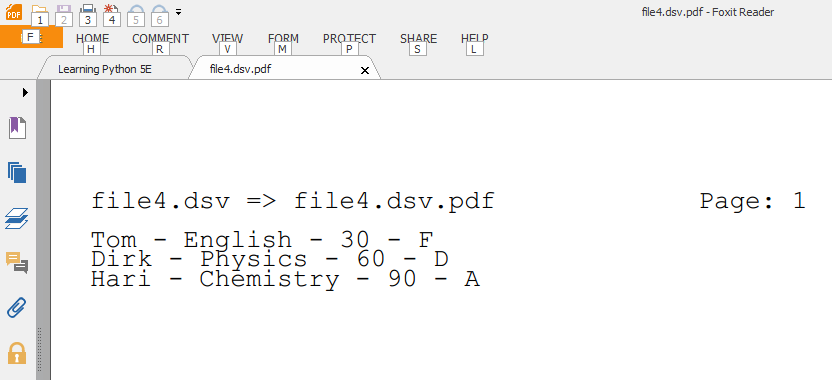
I did a sample run with the data shown in the image at the top of this post, which uses the pipe character (|) as the delimiter between fields (124 is the ASCII code for the pipe character):
$ python DSVToPDF.py -n 124 file4.dsv
And here is a cropped screenshot of the PDF output as viewed in Foxit PDF Reader:

- Enjoy.

- Vasudev Ram - Online Python training and consulting

Get updates on my software products / ebooks / courses.

Jump to posts: Python   DLang   xtopdf

Subscribe to my blog by email

My ActiveState recipes

Managed WordPress Hosting by FlyWheel


Wednesday, October 26, 2016

Read from CSV with D, write to PDF with Python

By Vasudev Ram


CSV => PDF

Here is another in my series of applications of xtopdf, my PDF creation toolkit for Python (xtopdf source here).

This xtopdf application is actually a pipeline (nothing Unix-specific though, will work on both *nix and Windows) - a D program reading CSV data and sending it to a Python program, which writes the data to PDF.

The D program, read_csv.d, reads CSV data from a .csv file, and writes it to standard output.

The Python program, StdinToPDF.py (which is part of the xtopdf toolkit), reads its standard input (which is redirected by the pipeline to come from the D program's standard output) and writes the data it reads, to PDF.

Here is the D program, read_csv.d:
/**************************************************
File: read_csv.d
Purpose: A program to read CSV data from a file and 
write it to standard output.
Author: Vasudev Ram
Date created: 2016-10-25
Copyright 2016 Vasudev Ram
Web site: https://vasudevram.github.io
Blog: http://jugad2.blogspot.com
Product store: https://gumroad.com/vasudevram
**************************************************/

import std.algorithm;
import std.array;
import std.csv;
import std.stdio;
import std.file;
import std.typecons;

int main()
{
    try {
        stderr.writeln("Reading CSV data from file.");
        auto file = File("input.csv", "r");
        foreach (record;
            file.byLine.joiner("\n").csvReader!(Tuple!(string, string, int)))
        {
            writefln("%s works as a %s and earns $%d per year",
                     record[0], record[1], record[2]);
        }
    } catch (CSVException csve) {
        stderr.writeln("Caught CSVException: msg = ", csve.msg, 
        " at row, col = ", csve.row, ", ", csve.col);
    } catch (FileException fe) {
        stderr.writeln("Caught FileException: msg = ", fe.msg);
    } catch (Exception e) {
        stderr.writeln("Caught Exception: msg = ", e.msg);
    }
    return 0;
}
The D program is compiled as usual with:
dmd read_csv.d
I ran it first (only the D program) with an invalid CSV file (it has an extra comma at the start on line 3, which invalidates the data by making "Driver" be in the salary column position), and got the expected error message, which includes the row and column number of the place in the CSV file where the program encountered the error - this is useful for fixing the input data:
$ type input.csv
Jack,Carpenter,40000
Tom,Blacksmith,50000
,Jill,Driver,60000
$ read_csv
Reading CSV data from file.
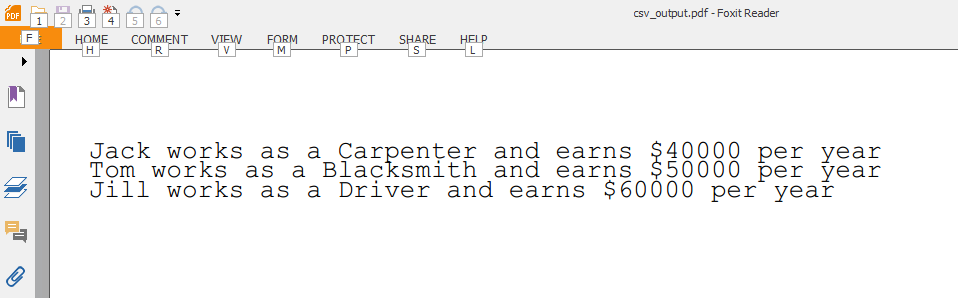
Jack works as a Carpenter and earns $40000 per year
Tom works as a Blacksmith and earns $50000 per year
Caught CSVException: msg = Unexpected 'D' when converting from type string to type int 
at row, col = 3, 3
Then I ran it again, in the regular way, this time with a valid CSV file, and as part of a pipeline, the other pipeline component being StdinToPDF:
$ read_csv | python StdinToPDF.py csv_output.pdf
Reading CSV data from file.
And here is a cropped view of the output as seen in Foxit PDF Reader:


- Enjoy.

- Vasudev Ram - Online Python training and consulting

Get updates on my software products / ebooks / courses.

Jump to posts: Python   DLang   xtopdf

Subscribe to my blog by email

My ActiveState recipes

FlyWheel - Managed WordPress Hosting


Friday, March 8, 2013

Python TableFu aims to become an ORM for spreadsheets

By Vasudev Ram

Python TableFu is an interesting tool I saw recently. It is a Python library that lets you import tabular data from CSV files and then manipulate them in memory, by calling its methods.

From the site:

[ Python TableFu is a tool for manipulating spreadsheet-like tables in Python. It began as a Python implementation of ProPublica's TableFu, though new methods have been added. TableFu allows filtering, faceting and manipulating of data. Going forward, the project aims to create something akin to an ORM for spreadsheets. ]

A CSV file you specify, is used as input to create a TableFu object, and the rows are available as a list, which can be indexed to get a specific row. The columns (of each row) are available as a dictionary, so you can say table[column_name], e.g. table["Author] to get a specific column. The model seems to make sense, since table rows usually don't have specific names, they are treated as "row number so-and-so", while columns do have names - the header of the column, if it is a CSV file, or the column name of a database table, using RDBMS terminology.

Python TableFu allows filtering, "faceting" and manipulation of the table data.

Here is some example Python TableFu code, from the site; I've deleted some bits to keep it short:

>>> from table_fu import TableFu
>>> table = TableFu.from_file('tests/test.csv')
>>> table.columns
['Author', 'Best Book', 'Number of Pages', 'Style']

# get all authors
>>> table.values('Author')
['Samuel Beckett', 'James Joyce', 'Nicholson Baker', 'Vladimir Sorokin']

# total a column
>>> table.total('Number of Pages')
1177.0

# filtering a table returns a new instance
>>> t2 = table.filter(Style='Modernism')
>>> list(t2)
[Row: Samuel Beckett, Malone Muert, 120, Modernism,
 Row: James Joyce, Ulysses, 644, Modernism]


# each TableFu instance acts like a list of rows
>>> table[0]


list(table.rows)
[Row: Samuel Beckett, Malone Muert, 120, Modernism,
 Row: James Joyce, Ulysses, 644, Modernism,
 Row: Nicholson Baker, Mezannine, 150, Minimalism,
 Row: Vladimir Sorokin, The Queue, 263, Satire]

# rows, in turn, act like dictionaries
>>> row = table[1]
>>> print row['Author']
James Joyce

# transpose a table
>>> t2 = table.transpose()
>>> list(t2)
[Row: Best Book, Malone Muert, Ulysses, Mezannine, The Queue,
 Row: Number of Pages, 120, 644, 150, 263,
 Row: Style, Modernism, Modernism, Minimalism, Satire]

>>> t2.columns
['Author',
 'Samuel Beckett',
 'James Joyce',
 'Nicholson Baker',
 'Vladimir Sorokin']

# sort rows
>>> table.sort('Author')
>>> table.rows
[Row: James Joyce, Ulysses, 644, Modernism,
 Row: Nicholson Baker, Mezannine, 150, Minimalism,
 Row: Samuel Beckett, Malone Muert, 120, Modernism,
 Row: Vladimir Sorokin, The Queue, 263, Satire]

(I deleted the angle brackets from the original output (that demarcates Rows) because it was messing up the HTML formatting, due to being interpreted as HTML elements.)

Python TableFu looks like it could be useful to manipulate CSV data in memory, before writing it out to another file or sending it to another process (or function in the same program) for further processing.

- Vasudev Ram - Dancing Bison Enterprises


Monday, November 5, 2012

PDFBuilder can now take multiple input files from command line


By Vasudev Ram

PDFBuilder, which I blogged about recently, can now build a composite PDF from an arbitrary number [1] of input files (CSV and TDV) [2] specified on the command line. (I've removed the hard-coding in the first version.)

I've also cleaned up and refactored the PDFBuilder code some, though I still need to do some more.

UPDATE: I've pasted a few code snippets from PDFBuilder.py at the end of this post.

This version of PDBBuilder can be downloaded here, as a part of xtopdf v1.4, from the Bitbucket repository.

[1] Arbitrary number, that is, subject to the limitations of the length of the command line supported by your OS, of course - whether Unix / Linux, Mac OS X or Windows. However, there is a solution for that.

[2] The design of PDFBuilder allows for easily adding support for other input file formats that are row-oriented. See the method next_row() in the file CSVReader.py in the source package, for an example of how to add support for other compatible input formats. You just have to write a reader class (analogous to CSVReader) for that other format, called, say, FooReader, and provide an open() method and a next_row() method as in the CSVReader class, but adapted to handle Foo data.

Some code snippets from PDFBuilder.py:

The PDFBuilder class:
class PDFBuilder:
 """
 Class to build a composite PDF out of multiple input sources.
 """

 def __init__(self, pdf_filename, font, font_size, 
    header, footer, input_filenames):
  """
  PDFBuilder __init__ method.
  """
  self._pdf_filename = pdf_filename
  self._input_filenames = input_filenames

  # Create a PDFWriter instance.
  self._pw = PDFWriter(pdf_filename)

  # Set its font.
  self._pw.setFont(font, font_size)

  # Set its header and footer.
  self._pw.setHeader(header)
  self._pw.setFooter(footer)
  
 def build_pdf(self, input_filenames):
  """
  PDFBuilder.build_pdf method.
  Builds the PDF using contents of the given input_filenames.
  """

  # Loop over all names in input_filenames.
  # Instantiate the appropriate reader for each filename, 
  # based on the filename extension.

  # For each reader, get each row, and for each row,
  # combine all the columns into a string separated by a space,
  # and write that string to the PDF file.

  # Start a new PDF page after each reader's content is written
  # to the PDF file.

  for input_filename in input_filenames:
   # Check if name ends in ".csv", ignoring upper/lower case
   if input_filename[-4:].lower() == ".csv":
    reader = CSVReader(input_filename)
   # Check if name ends in ".tdv", ignoring upper/lower case
   elif input_filename[-4:].lower() == ".tdv":
    reader = TDVReader(input_filename)
   else:
    sys.stderr.write("Error: Invalid input file. Exiting\n")
    sys.exit(0)

   hdr_str = "Data from reader: " + \
    reader.get_description()
   self._pw.writeLine(hdr_str)
   self._pw.writeLine('-' * len(hdr_str))

   reader.open()
   try:
    while True:
     row = reader.next_row()
     s = ""
     for item in row:
      s = s + item + " "
     self._pw.writeLine(s)
   except StopIteration:
    # Close this reader, save this PDF page, and 
    # start a new one for next reader.
    reader.close()
    self._pw.savePage()
    #continue

 def close(self):
  self._pw.close()
The main() function that uses the PDFBuilder class to create a composite PDF:
def main():

 # global variables

 # program name for error messages
 global prog_name
 # debug flag - if true, print debug messages, else don't
 global DEBUGGING
 
 # Set the debug flag based on environment variable DEBUG, 
 # if it exists.
 debug_env_var = os.getenv("DEBUG")
 if debug_env_var == "1":
  DEBUGGING = True

 # Save program filename for error messages
 prog_name = sys.argv[0]

 # check for right args
 if len(sys.argv) < 2:
  usage()
  sys.exit(1)

 # Get output PDF filename from the command line.
 pdf_filename = sys.argv[1]

 # Get the input filenames from the command line.
 input_filenames = sys.argv[2:]

 # Create a PDFBuilder instance.
 pdf_builder = PDFBuilder(pdf_filename, "Courier", 10, 
       "Composite PDF", "Composite PDF", 
       input_filenames)

 # Build the PDF using the inputs.
 pdf_builder.build_pdf(input_filenames)

 pdf_builder.close()

 sys.exit(0)
And a batch file, run.bat, calls the program with input filename arguments:
@echo off
python PDFBuilder.py %1 file1.csv file1.tdv file2.csv file2.tdv file1-repeats5.csv
Run the batch file like this:
C:> run composite.pdf
which will create a PDF file, composite.pdf, from the input CSV and TDV files given as command-line arguments.

Enjoy.

- Vasudev Ram - Dancing Bison Enterprises

Tuesday, August 28, 2012

openpyxl library to read/write Excel 2007 xlsx/xlsm files

By Vasudev Ram


openpyxl - A Python library to read/write Excel 2007 xlsx/xlsm files

Seems to have a straightforward API.

The openpyxl site has a tutorial and a cookbook.

- Vasudev Ram - Dancing Bison Enterprises


Monday, August 13, 2012

Inferno on Disco, Python MapReduce library / daemon for structured text

By Vasudev Ram


Inferno is an open-source Python MapReduce library. It has (from the site):

[ A query language for large amounts of structured text (CSV, JSON, etc).

A continuous and scheduled MapReduce daemon with an HTTP interface that automatically launches MapReduce jobs to handle a constant stream of incoming data. ]

Overview of Inferno.

This overview page has a nice serial example: starting with a small set of test data, it shows how to query for a certain result, in SQL and then in AWK (both are easy one-liners), but then goes on to show how the achieve the same result using Inferno.

The interesting point is that the Inferno code is also small (a "rule" of ~10 lines, presumably stored in a config file) and a one-line command, but the difference from the SQL and AWK examples is that this runs a Disco MapReduce job to distribute the work across the nodes on a cluster. There is almost nothing in the Inferno code to indicate that this is a distributed computing MapReduce job.

Inferno uses Disco.

Disco is "a distributed computing framework based on the MapReduce paradigm. Disco is open-source; developed by Nokia Research Center to solve real problems in handling massive amounts of data."

Some users of Disco: (Chango, Nokia, Zemanta). Chango staff seem to be the developers of Disco.

- Vasudev Ram - Dancing Bison Enterprises